Category: Web Performance

Make sites feel instant: Core Web Vitals, INP, caching headers, prerendering and view transitions.

  • Cache-Control Headers in 2026: Caching Rules That Make Repeat Visits Instant

    Cache-Control Headers in 2026: Caching Rules That Make Repeat Visits Instant

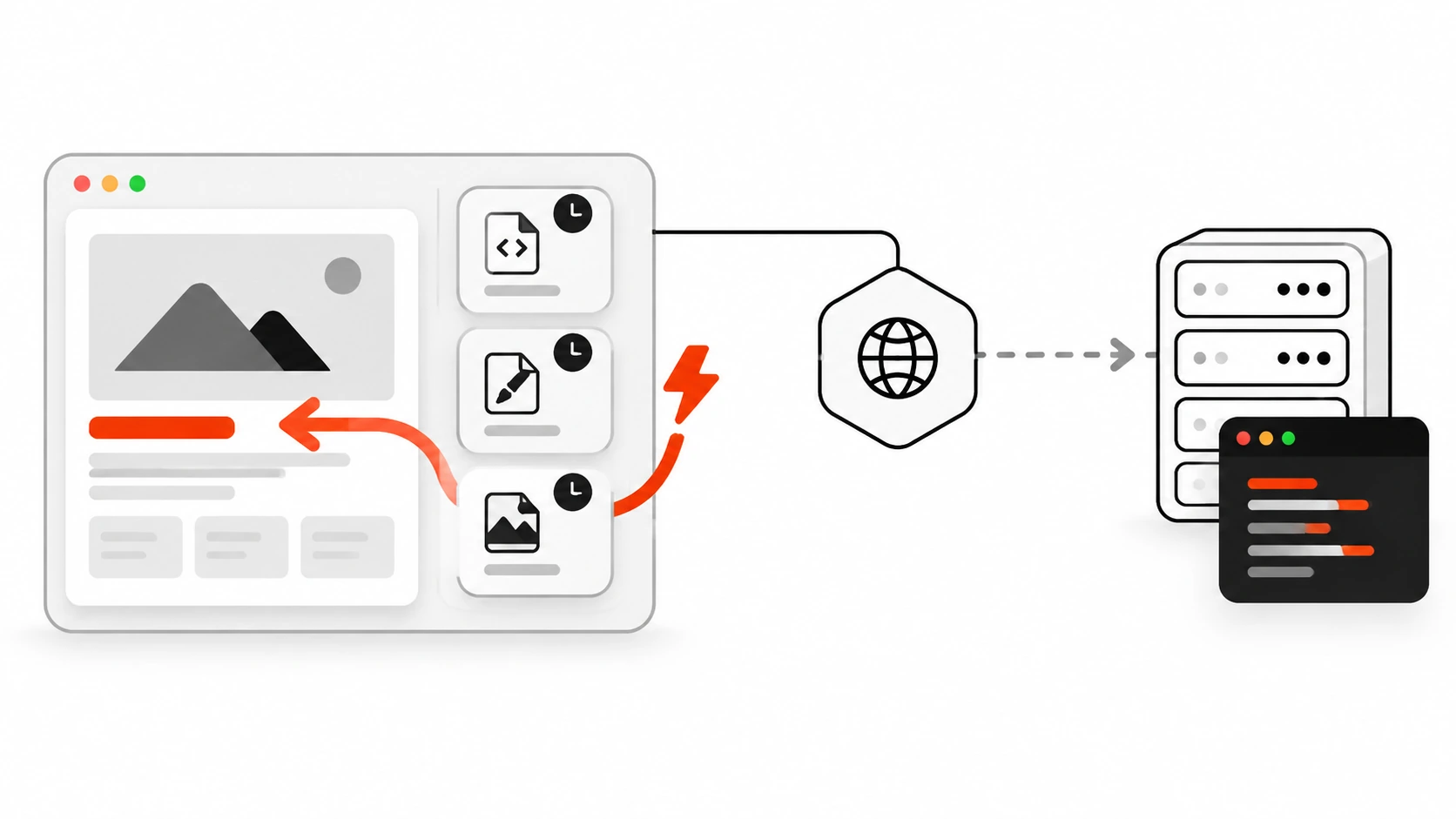
    Flat vector illustration of a browser window with a small cache shelf of files, where an orange-red return arrow serves a repeat visit instantly from the browser cache instead of travelling to the origin server

    The message I get most often after a deploy goes something like this: “I changed the button color. Why do I still see the old one?” One person on the team sees the new color, another sees the old one, and a hard refresh fixes it for them but not for their customers. Usually nothing is wrong with the code. The stylesheet is called style.css, the server sends it with a long max-age, and every browser that visited recently is doing exactly what it was told: reuse the copy it already has.

    That is the most common caching bug I see, and it comes from the same root cause every time. Cache-Control headers are a set of instructions, and most sites send them by accident: a hosting default here, a plugin setting there, a framework default nobody looked at. When the instructions are wrong, you get stale pages after a deploy, or you get the opposite problem: a site that downloads the same 300 KB bundle on every single visit because nothing is allowed to be reused.

    In this guide I will walk through how I set Cache-Control headers on client projects: the three layers of cache a request passes through, the three rules that cover almost every file on a normal site, how stale-while-revalidate works behind a CDN, and the exact snippets I use for Next.js, Nginx, Apache or LiteSpeed .htaccess, and WordPress. I will finish with how I check headers with curl -I and DevTools, because the headers you think you send and the headers you actually send are often different.

    Why Cache-Control headers matter more than another plugin

    Every repeat visit is a chance to skip the network. When the browser already holds a fresh copy of your CSS, JavaScript, fonts and images, the page can start rendering as soon as the HTML arrives. When it does not, the browser has to ask the server for each file again, wait for the answer, and only then continue. On a fast office connection you barely notice. On a phone on a train, it is the difference between a page that feels instant and one that feels broken.

    Good Cache-Control headers also protect your server. A file served from a CDN edge or the browser’s own cache never touches your origin, so your hosting plan, your PHP workers and your database get to rest. On WordPress sites I often get a bigger speed win from fixing headers than from swapping themes, and it costs nothing. If you want the server side of that story, I wrote about it in my guide to WordPress performance and TTFB.

    One more reason to be explicit: if a response has no Cache-Control header at all, it is not automatically “not cached”. HTTP allows heuristic caching, where a cache guesses a lifetime from the Last-Modified date. MDN notes that the spec suggests roughly 10 percent of the time since the file was last modified. So a stylesheet that was last changed a year ago could be reused for weeks without you ever asking for that. The safest habit is simple: every response your site sends should carry a deliberate Cache-Control header.

    The three cache layers a request travels through

    When I explain caching to clients, I draw three boxes: the browser, the CDN edge and the origin server. A request starts at the left and only travels as far right as it needs to.

    The browser cache is a private cache. It belongs to one person on one device, so it can safely store things that are personal to them. It is also the fastest layer by far, because a fresh hit there does not touch the network at all.

    The CDN edge is a shared cache. Cloudflare, Vercel’s CDN, Fastly, Akamai, a reverse proxy like Varnish or an Nginx cache: they all store one copy and hand it to many visitors. That makes them great for public files and public pages, and dangerous for anything personal. If a logged-in dashboard ends up in a shared cache, the next visitor can get someone else’s data.

    The origin is your actual server: Node, PHP, a WordPress install, a static file host. Every request that reaches it costs CPU time and, usually, more latency, because the origin is often far away from the visitor.
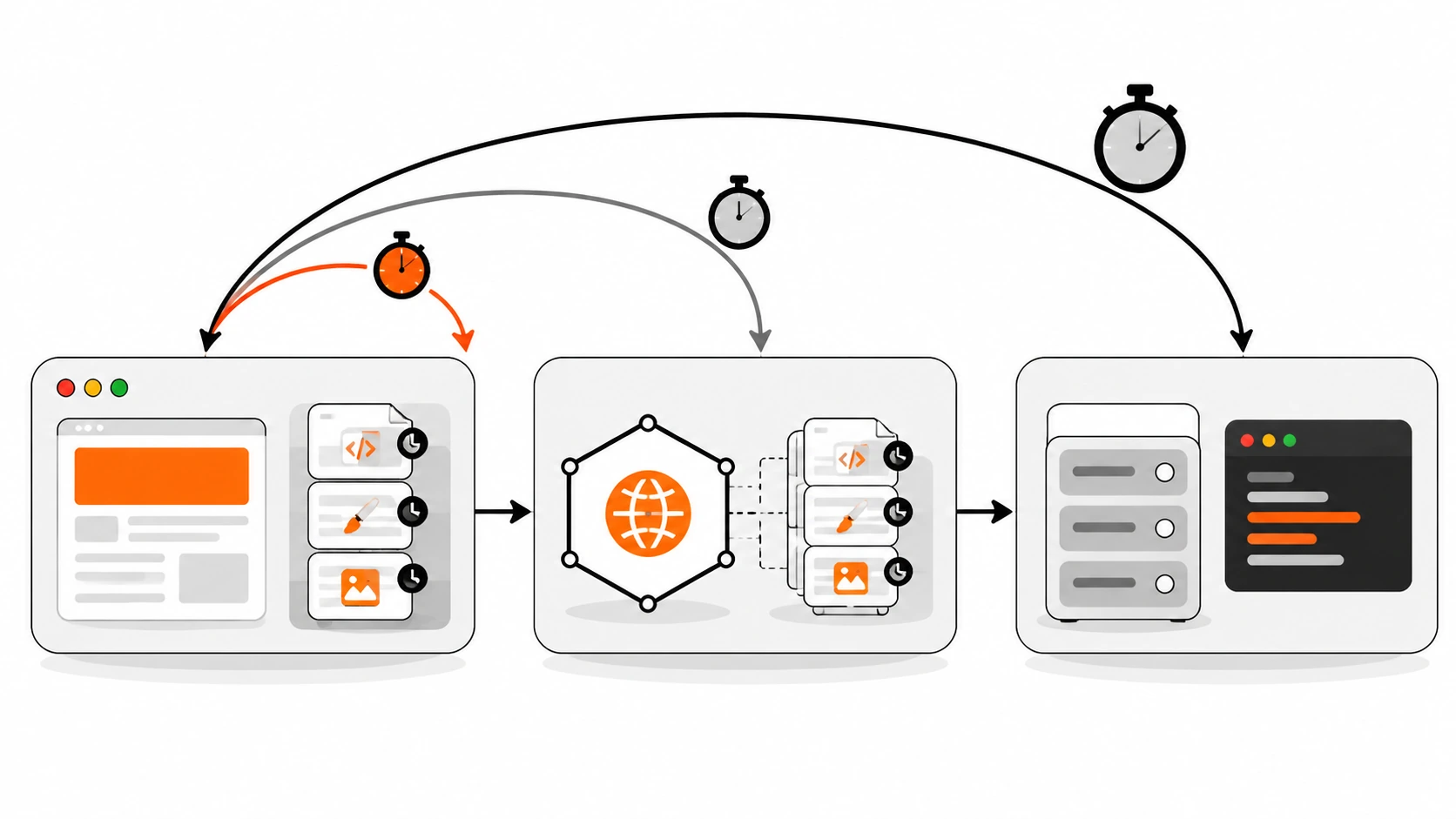
    Infographic of the three cache layers a request passes through: the browser cache answers fastest, the CDN edge answers next, and the origin server is the longest trip
    Infographic 1: Three cache layers – browser cache (fastest, private), CDN edge (shared), origin server (slowest trip). A request only travels as far as it needs to.

    Cache-Control is how you tell each of these layers what it may do. Some directives apply to every cache, some only to shared caches (s-maxage, proxy-revalidate), and some only make sense for the browser (immutable, private). Once you see the three boxes, the directives stop looking like random words.

    The Cache-Control directives you actually need

    The full list on MDN is long, but on real projects I reach for about eight response directives. Here is how I think about each one.

    • max-age=N: the response stays fresh for N seconds, counted from when the origin generated it. While fresh, any cache may reuse it without asking.
    • s-maxage=N: the same idea, but only for shared caches like a CDN. Browsers ignore it. It overrides max-age for those shared caches.
    • no-cache: caches may store the response, but must check with the server before every reuse. It does not mean “do not cache”.
    • no-store: no cache, private or shared, should store the response at all.
    • private: only the browser may store it. CDNs and proxies must not.
    • public: shared caches may store it even in cases where they normally would not, such as responses to requests with an Authorization header. You rarely need it otherwise.
    • immutable: tells the browser the file will never change while it is fresh, so it should not even revalidate on a reload.
    • stale-while-revalidate=N and stale-if-error=N: extensions from RFC 5861 that allow a cache to serve a slightly stale copy while it refreshes in the background, or when the origin is failing.

    The single most misunderstood pair is no-cache and no-store. MDN puts it bluntly: no-cache allows caches to store a response but requires them to revalidate it before reuse. If what you really mean is “never keep a copy”, that is no-store. I have seen login pages sent with no-cache because someone thought it blocked storage, and marketing pages sent with no-store because someone wanted them “always fresh”. Both are backwards.

    You will also see kitchen-sink headers like private, no-cache, no-store, max-age=0, must-revalidate copied from old answers. Because the most restrictive directive wins, that whole line effectively means no-store. Write what you mean instead.

    Rule 1: hashed assets get a year and immutable
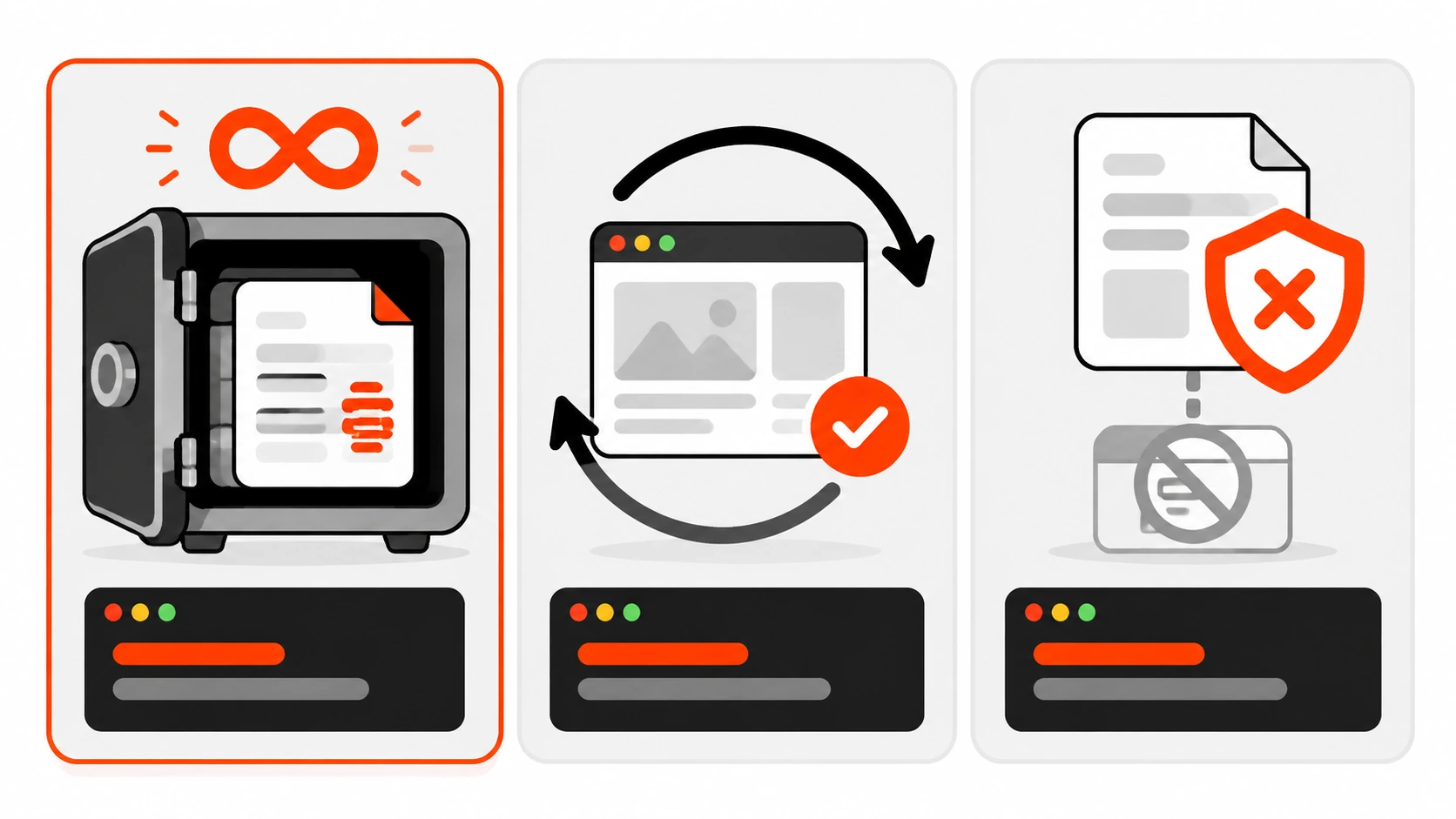
    Infographic of three Cache-Control rules: hashed assets cached long-lived and immutable, HTML stored but revalidated on every visit, and private data never stored
    Infographic 2: Three rules – hashed assets: public, max-age=31536000, immutable. HTML: no-cache with ETag revalidation. Private data: no-store (or private).

    The first rule covers JavaScript bundles, CSS files, fonts and images that your build tool fingerprints. When a file name contains a hash of its contents, like app.3f9a1c.js, the content behind that URL can never change. If you edit the code, the build produces a new hash and therefore a new URL. That makes it safe to cache the file for as long as browsers allow:

    Cache-Control: public, max-age=31536000, immutable

    31536000 seconds is one year. The immutable directive tells supporting browsers not to send a revalidation request even when the user hits reload. According to MDN, Chrome took a different route and stopped revalidating subresources on normal reloads instead, so the practical result is similar across browsers. The public part is optional for most sites, but this exact public, max-age=31536000 value is so common that it sits in the HTTP/3 QPACK static header table.

    The classic mistake: a long max-age on style.css

    Here is the bug from the opening story, in header form. The HTML references a stylesheet without any version in its name:

    <link rel="stylesheet" href="/css/style.css">

    And the server sends this for every CSS file:

    Cache-Control: max-age=2592000

    That is 30 days. Every visitor who loaded the page before your deploy keeps using the old style.css for up to a month, and there is nothing you can do from the server to recall it. MDN is clear on this: there are no cache directives for clearing already-stored responses, and Clear-Site-Data: cache only clears the browser cache of a visitor who actually reaches you, not CDNs in between.

    The fix is not a shorter max-age. The fix is to change the URL whenever the content changes, and then cache aggressively:

    <!-- Built by Vite, webpack, Next.js and others -->
    <link rel="stylesheet" href="/assets/style.8c41d2.css">
    
    <!-- WordPress style: version in the query string -->
    <link rel="stylesheet" href="/wp-content/themes/mytheme/style.css?ver=2.4.1">

    Once every static file has a hash or version in its URL, you can safely give it the one-year header. If you cannot add hashes yet, give unversioned files no-cache with a validator instead, so browsers check before reusing them. That is slower than a hashed file, but it is never wrong.

    Rule 2: HTML gets no-cache with ETag revalidation

    HTML is different, because its URL can never change. /pricing has to stay /pricing. If you give HTML a long max-age, you are back to the stale-page problem, and this time hashed assets will not save you, because the old HTML still points at the old hashed files.

    For most public HTML I use:

    Cache-Control: no-cache
    ETag: "5f2b-1a9c"
    Last-Modified: Wed, 07 Oct 2026 09:12:00 GMT

    The browser stores the page but asks before reusing it. It sends a conditional request with the validators it saved:

    GET /pricing HTTP/1.1
    If-None-Match: "5f2b-1a9c"
    If-Modified-Since: Wed, 07 Oct 2026 09:12:00 GMT

    If nothing changed, the server answers 304 Not Modified with no body, which is tiny. If the page did change, it sends a normal 200 with the new HTML, and that new HTML points to the new hashed CSS and JS. When both validators are present, If-None-Match wins, so a good ETag is the one that matters most. Most web servers and frameworks generate ETags for static files automatically; for dynamic pages you may need to check that your stack actually sends one, otherwise every revalidation becomes a full download.

    This pairing, hashed assets cached for a year plus HTML that always revalidates, is the cache-busting pattern MDN recommends, and it is the backbone of every site I build.

    A quick word on bfcache

    There is one place where no-cache does not revalidate: the back and forward buttons. Browsers can restore a page from the back/forward cache (bfcache), which is a memory snapshot of the whole page, not an HTTP cache entry. That restore is instant and does not check with the server. It is usually exactly what you want. If a page shows data that changes minute to minute, listen for the pageshow event and refresh that data when event.persisted is true.

    Rule 3: private data gets no-store (or private)

    Anything personal to one user needs special care: account pages, order history, checkout, dashboards, API responses that include a user’s details. Two directives matter here.

    # Personalized, but fine to keep in this user's own browser for a moment
    Cache-Control: private, no-cache
    
    # Sensitive: never store anywhere
    Cache-Control: no-store

    private keeps responses out of shared caches while still letting the browser reuse or revalidate them. MDN recommends adding private to responses after login and for cookie-based sessions, because forgetting it is how personal data leaks through a shared cache. no-store goes further and tells every cache not to keep a copy at all. I use it for banking-style screens, password reset pages and anything with tokens or personal documents.

    Do not spread no-store across the whole site, though. The web.dev bfcache guide explains that pages served with Cache-Control: no-store have historically been excluded from the back/forward cache, which makes back navigation slower for everyone (Chrome is working on changing this in a privacy-preserving way, but I would not rely on it yet). For pages that just need to be up to date and are not sensitive, no-cache is the better tool.

    A related trap is the Vary header. Vary: Accept-Encoding is normal and harmless. Vary: User-Agent splits the cache into thousands of variants and kills your hit rate. And if you are tempted to use Vary: Cookie to separate users, MDN and Vercel both point you to private instead.

    Behind a CDN: s-maxage and stale-while-revalidate

    So far HTML always goes back to the origin. That is fine for many sites, but for content-heavy pages that are the same for every visitor, like blog posts, docs or product listings, you can let the CDN hold a copy for a few minutes and serve it to everyone. The browser still revalidates, but the CDN answers instead of your server.

    Infographic of a cached response aging over time: fresh and served instantly, then a stale-while-revalidate window where the stale copy is served while a refresh happens in the background, then expired and waiting on the server
    Infographic 3: Freshness timeline – fresh (served instantly), stale-while-revalidate window (stale copy served while the cache refreshes in the background), expired (visitor waits for the origin).

    A cached response moves through three phases. While it is fresh, the cache serves it instantly. Once it goes stale, stale-while-revalidate gives a grace window where the cache still serves the old copy immediately and fetches a new one in the background, so no visitor waits for the origin. After that window, the response is expired and the next visitor waits for a full trip to the server.

    On Vercel, and for Next.js ISR pages, the documented pattern is:

    Cache-Control: s-maxage=600, stale-while-revalidate=60

    That reads as: the CDN keeps the page fresh for 10 minutes, then for one more minute it may serve the stale copy while refreshing it in the background. Browsers ignore s-maxage, and Vercel’s docs say its CDN consumes s-maxage and stale-while-revalidate and strips them from the response the browser sees when Cache-Control is the only cache header.

    The Cloudflare gotcha with s-maxage

    This is the part I had to double check while writing, because CDNs read the same header differently. Cloudflare’s documentation says not to combine s-maxage with stale-while-revalidate: under RFC 9111, s-maxage carries the semantics of proxy-revalidate, so a shared cache must not serve stale content without revalidating first, and Cloudflare will report EXPIRED instead of serving stale. Their suggested workarounds are to send max-age with stale-while-revalidate and set a separate Edge Cache TTL in Cache Rules, or to use a CDN-specific header.

    Also remember that Cloudflare does not cache HTML or JSON by default at all. It caches by file extension (CSS, JS, images, fonts and so on), and it skips responses with private, no-store, no-cache, max-age=0 or a Set-Cookie header. If you want HTML at the edge, you need a Cache Rule plus sensible headers.

    CDN-Cache-Control: one header per audience

    RFC 9213 standardized targeted cache control, which solves exactly this problem. CDN-Cache-Control uses the same directives as Cache-Control, but only CDNs that support it read it, and when they do, they ignore the normal Cache-Control header for their own decisions:

    Cache-Control: no-cache
    CDN-Cache-Control: max-age=600, stale-while-revalidate=60

    Here the browser always revalidates, while the CDN holds the page for 10 minutes with a one-minute background refresh window. Cloudflare and Vercel both document support for CDN-Cache-Control, plus their own vendor headers, Cloudflare-CDN-Cache-Control and Vercel-CDN-Cache-Control, which take priority and are not forwarded downstream. Fastly’s docs center on its own Surrogate-Control header and Akamai has its own settings, so check your provider’s documentation before relying on the standard header there.

    One warning that comes with any edge caching of HTML: a long CDN lifetime is only safe if you can purge it. Next.js documents that revalidatePath() and revalidateTag() refresh the Next.js server cache but do not purge an external CDN, so pair them with your CDN’s purge API, or keep the edge lifetime short.

    Framework and server examples

    Here are the snippets I actually paste into projects. Adjust paths to match where your build puts its files.

    Next.js

    Next.js already does the hard part for hashed files. Its docs state that it sends public, max-age=31536000, immutable for truly immutable assets, like the hashed files under /_next/static, and that you cannot override that in next.config.js. For pages, it sets headers from the rendering strategy: static pages get s-maxage=31536000, ISR pages get s-maxage equal to your revalidate value plus a stale-while-revalidate window, and dynamic pages get private, no-cache, no-store, max-age=0, must-revalidate.

    For everything else, use the headers() function in next.config.js:

    // next.config.js
    module.exports = {
      async headers() {
        return [
          {
            // Files in /public are not hashed, so revalidate them
            source: '/images/:path*',
            headers: [{ key: 'Cache-Control', value: 'public, max-age=0, must-revalidate' }],
          },
          {
            source: '/account/:path*',
            headers: [{ key: 'Cache-Control', value: 'no-store' }],
          },
        ];
      },
    };

    In a Route Handler you can set headers directly on the response:

    // app/api/posts/route.js
    export async function GET() {
      const posts = await getPublicPosts();
      return Response.json(posts, {
        headers: {
          'Cache-Control': 'public, max-age=60',
          'CDN-Cache-Control': 'max-age=600, stale-while-revalidate=60',
        },
      });
    }

    Nginx

    # Hashed build output, for example /assets/app.3f9a1c.js
    location /assets/ {
        add_header Cache-Control "public, max-age=31536000, immutable" always;
        try_files $uri =404;
    }
    
    # HTML and everything else: always revalidate
    location / {
        add_header Cache-Control "no-cache" always;
        try_files $uri $uri/ /index.html;
    }
    
    location /account/ {
        add_header Cache-Control "no-store" always;
        proxy_pass http://app;
    }

    A gotcha that has bitten me more than once: in Nginx, add_header directives are inherited from the parent level only if the current level defines none. So the moment you add a Cache-Control header inside a location, any security headers you set at the server level disappear from that location unless you repeat them. Newer Nginx releases (1.29.3 and later) add add_header_inherit merge to change that behavior. Also note always: without it, Nginx only adds the header for a list of success and redirect status codes.

    Apache, LiteSpeed and .htaccess

    Most shared hosting runs Apache or LiteSpeed, and both read .htaccess. With mod_headers available:

    <IfModule mod_headers.c>
      # Fingerprinted files like app.3f9a1c.js or style.8c41d2.css
      <FilesMatch "\.[0-9a-f]{6,}\.(js|css|woff2|svg|png|jpg|webp|avif)$">
        Header set Cache-Control "public, max-age=31536000, immutable"
      </FilesMatch>
    
      # HTML and PHP output: always revalidate
      <FilesMatch "\.(html|php)$">
        Header set Cache-Control "no-cache"
      </FilesMatch>
    </IfModule>

    The pattern above matches hex hashes like app.3f9a1c.js. Vite and some other tools produce names like index-B4f9xQ2a.js instead, so either adjust the pattern or, simpler, put all build output in one folder such as /assets/ and give that folder the long header.

    If you only have mod_expires, the older style still works, but it cannot express immutable:

    <IfModule mod_expires.c>
      ExpiresActive On
      ExpiresByType text/css "access plus 1 year"
      ExpiresByType application/javascript "access plus 1 year"
      ExpiresByType image/webp "access plus 1 year"
      ExpiresByType text/html "access plus 0 seconds"
    </IfModule>

    Only give a year to files whose URLs change when their content changes. On WordPress that is true for theme and plugin assets loaded with a ?ver= query string, as long as the version actually bumps on each release.

    WordPress

    WordPress core already protects private screens. Its wp_get_nocache_headers() function returns Cache-Control: no-cache, must-revalidate, max-age=0, no-store, private, and since WordPress 6.8 it includes no-store and private regardless of whether the user is logged in. It is used for things like the REST API server and admin requests, and you can adjust it with the nocache_headers filter.

    For public pages, your page cache plugin or host usually decides the headers. For theme assets, the trick is to make sure the version changes on every deploy. I tie it to the file’s modification time:

    // functions.php
    add_action( 'wp_enqueue_scripts', function () {
        $path = get_stylesheet_directory() . '/assets/main.css';
        wp_enqueue_style(
            'theme-main',
            get_stylesheet_directory_uri() . '/assets/main.css',
            array(),
            filemtime( $path ) // new ?ver= whenever the file changes
        );
    } );

    Now the browser sees main.css?ver=1791349920 and a new number after every change, so a long cache lifetime on that file is safe.

    How I inspect Cache-Control headers

    I never trust a config file on its own. CDNs, hosting panels and plugins all rewrite headers, so I check what actually comes back.

    From the terminal, curl -I sends a HEAD request and prints only the headers:

    curl -I https://example.com/
    curl -I https://example.com/assets/app.3f9a1c.js
    
    # Test revalidation: send the ETag back and expect a 304
    curl -I -H 'If-None-Match: "5f2b-1a9c"' https://example.com/
    
    # Some servers treat HEAD differently, so compare with a real GET
    curl -s -o /dev/null -D - https://example.com/

    Look for cache-control, etag, last-modified, age and vary, plus the CDN’s own status header: cf-cache-status on Cloudflare (HIT, MISS, EXPIRED, UPDATING, BYPASS, DYNAMIC) or x-vercel-cache on Vercel. Run the same command twice; a growing age value tells you the response really is coming from a shared cache.

    In Chrome DevTools, open the Network panel, reload, and click any request to see its response headers. The Size column shows “(memory cache)” or “(disk cache)” when a file never touched the network, and a 304 status when it revalidated. Two things trip people up here. First, the “Disable cache” checkbox is on in many setups, which makes everything look uncached. Second, Vercel notes that DevTools often sends Pragma: no-cache, which makes its CDN revalidate synchronously, so timings with DevTools open are not what real visitors see. To test bfcache, open Application, then Back-forward Cache, and click Run Test.

    My default Cache-Control setup, as a checklist

    If you only take one thing from this post, take this table of decisions. It covers nearly every site I work on:

    • Hashed JS, CSS, fonts and images: public, max-age=31536000, immutable.
    • Unhashed static files (favicon, robots.txt, files in /public): no-cache with an ETag, or a short max-age if you accept some staleness.
    • Public HTML: no-cache with an ETag. Add CDN caching with CDN-Cache-Control or s-maxage only when you can purge.
    • Logged-in or personalized pages: private, no-cache.
    • Sensitive pages and API responses with personal data: no-store.
    • Every response: an explicit Cache-Control header, so no cache has to guess.

    Caching rules are one of those things that feel boring until a stale stylesheet ships to every customer. Spend twenty minutes with curl -I on your own site this week. Check what your HTML sends, check what your CSS sends, and make sure every long lifetime belongs to a URL that changes when the file does. Repeat visits get faster, deploys stop needing “try a hard refresh”, and your server gets a lot quieter. If you are looking for the next speed win after that, my guide to the Speculation Rules API shows how to make the next page load before the click.

  • Speculation Rules API in 2026: Prerender the Next Page Before the Click

    Speculation Rules API in 2026: Prerender the Next Page Before the Click

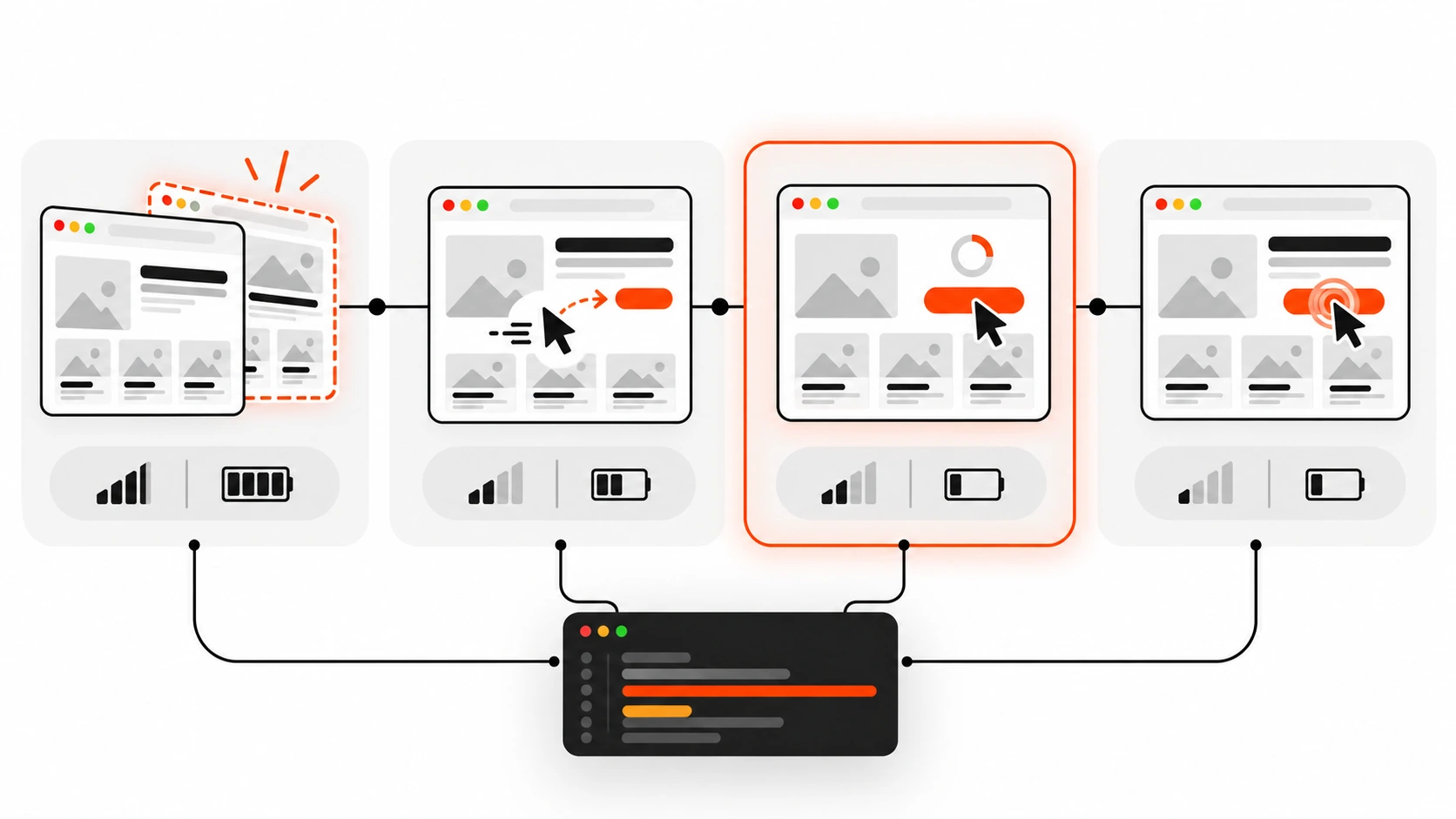
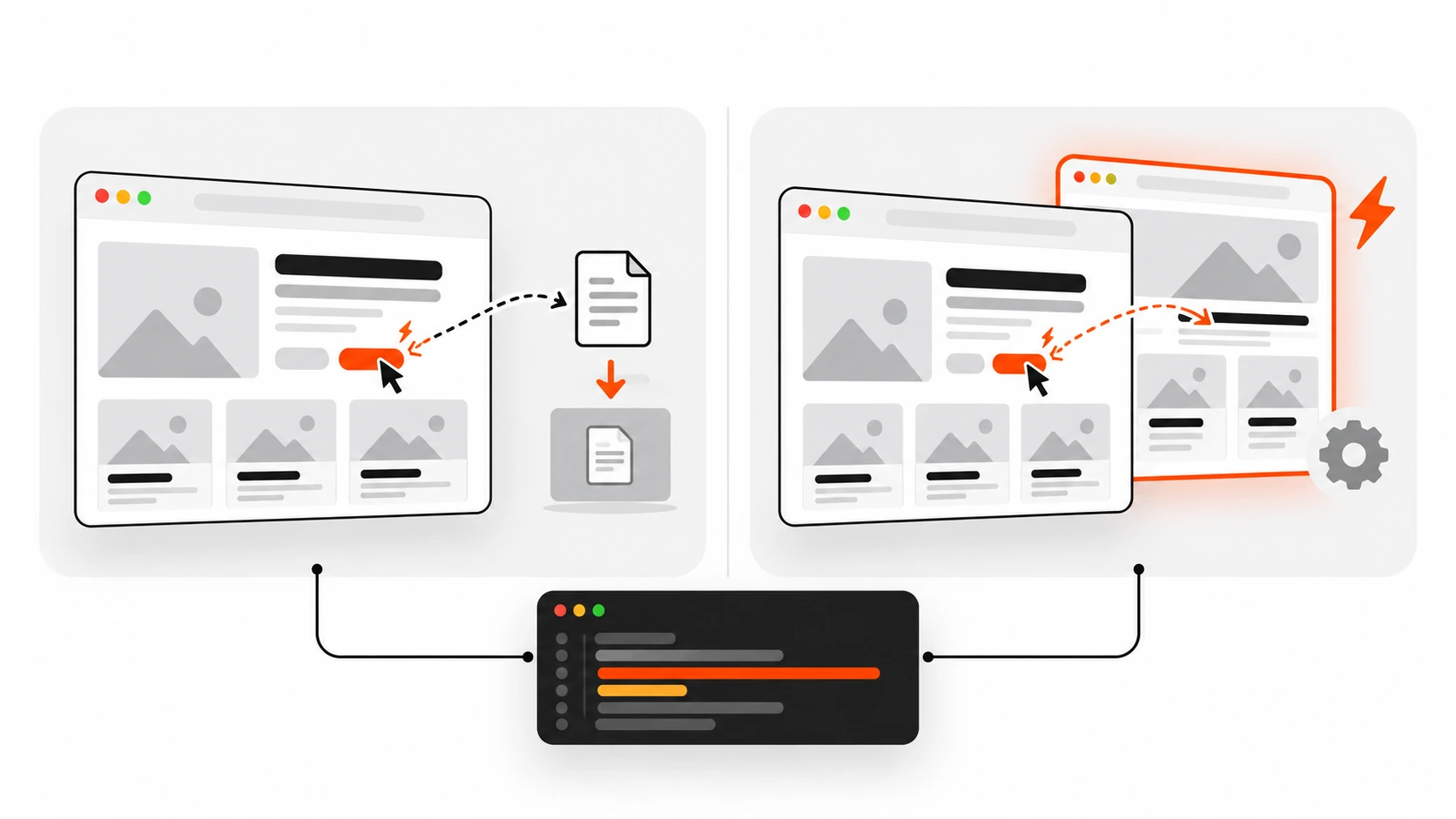
    Flat vector illustration of a browser window with a cursor hovering a link while the next page is already prerendered behind it, outlined in orange-red

    Last month a client asked me why their competitor’s site “felt instant” while theirs, which scored better in Lighthouse, still felt a beat slow when you clicked around. Same kind of WordPress setup, similar hosting, similar page weight. I opened the competitor’s homepage, looked at the source, and found a small <script type="speculationrules"> block near the bottom. That was the whole trick. Their next page was already loaded, sometimes already rendered, by the time the visitor’s finger left the mouse button.

    That little JSON block is the Speculation Rules API, and in 2026 it is one of the cheapest performance wins I know of for content sites, WooCommerce stores, documentation, and marketing sites. You do not rewrite your front end. You do not move to an SPA. You tell the browser which links are likely next, how early it is allowed to act, and which URLs it must never touch.

    In this guide I will walk through how I actually use the speculation rules API on client projects: the difference between prefetch and prerender, list rules versus document rules, the four eagerness levels, the HTTP header option, how to detect speculative requests on the server, how to keep analytics honest, how to measure the gain, and what WordPress 6.8 already does for you out of the box. I will also be clear about where it does not help, because that matters just as much.

    What the Speculation Rules API actually is

    The speculation rules API is a browser feature that lets a page declare, in JSON, which future navigations the browser may load ahead of time. It replaces the old <link rel="prerender"> hint, which Chrome stopped treating as a real prerender years ago, and it is a better tool than <link rel="prefetch"> for whole documents.

    The simplest version looks like this:

    <script type="speculationrules">
    {
      "prerender": [
        { "urls": ["/pricing/", "/contact/"] }
      ]
    }
    </script>

    That is a list rule. It names specific URLs. A browser that supports the API will prerender those two pages in the background, and if the visitor then clicks a link to one of them, the hidden page is swapped into the tab almost instantly. A browser that does not support the API sees a script type it does not recognise and ignores it. No errors, no broken pages. That is why I am comfortable shipping it on client sites: it is a pure progressive enhancement.

    Two details trip people up. First, speculation rules only cover full document navigations. They do not handle images, fonts, or scripts, and they do nothing for client-side route changes inside a single page app. Second, they work best on multi-page sites, which is most of the web: WordPress, Shopify-style stores, static sites, server-rendered apps.

    Prefetch vs prerender: pick the right level of speculation

    There are two actions you can ask for, and the difference is bigger than the names suggest.

    Prefetch

    A prefetch downloads the HTML document for a URL and keeps it in a per-document memory cache. It does not fetch the page’s images, CSS, or scripts, and it does not run any JavaScript. When the user navigates, the browser already has the response, so you save the full server round trip, including TTFB. On a slow origin that alone can cut hundreds of milliseconds.

    Prefetch is cheap and low risk. The cost is one extra GET request per speculated URL. If the user never clicks, you wasted a bit of bandwidth and a bit of server time.

    Prerender

    A prerender goes much further. The browser fetches the document and all its subresources, runs its JavaScript, and renders the whole page in a hidden background renderer, almost like an invisible tab. When the user clicks, that page is activated and shown. On a good day, the visitor sees the new page in effectively zero time.

    The trade-off is cost and side effects. Prerendering uses memory, CPU, and data on the visitor’s device, and your page’s JavaScript runs before anyone is looking at it. Analytics, ad impressions, A/B test assignments, and anything that writes to storage on load can misbehave if you have not prepared for that. I come back to this further down because it is where most real-world problems hide.

    My rule of thumb on client sites: prefetch broadly, prerender selectively.

    Infographic comparing prefetch, which downloads only the HTML document, with prerender, which fully loads, renders and runs scripts for the next page in the background
    Infographic 1: Prefetch fetches only the HTML document. Prerender loads, renders and runs the whole next page before the click.

    List rules vs document rules

    List rules are fine when you know the exact next page, such as step two of a checkout, the next article in a series, or the most clicked link on a landing page. But most sites have hundreds of links, and hardcoding URLs gets stale fast. That is what document rules are for.

    A document rule uses a where condition instead of urls. The browser looks at links in the page and picks the ones that match. Conditions can use href_matches, which takes URL patterns, and selector_matches, which takes CSS selectors, combined with and, or, and not.

    Here is the document rule I start most client projects with:

    <script type="speculationrules">
    {
      "prerender": [{
        "where": {
          "and": [
            { "href_matches": "/*" },
            { "not": { "href_matches": "/wp-admin/*" } },
            { "not": { "href_matches": "/logout*" } },
            { "not": { "href_matches": "/*\\?*(^|&)add-to-cart=*" } },
            { "not": { "selector_matches": ".no-prerender" } },
            { "not": { "selector_matches": "[rel~=nofollow]" } }
          ]
        },
        "eagerness": "moderate"
      }]
    }
    </script>

    Read it from top to bottom: any same-origin link, except the admin area, logout URLs, add-to-cart query links, anything I have marked with a no-prerender class, and nofollow links. The selector_matches exclusion is my favourite part, because it gives content editors a manual escape hatch without touching JSON.

    You may still see older examples with a "source": "list" or "source": "document" key. Chrome made that key optional from Chrome 121, because the presence of urls or where already tells the browser which kind of rule it is. Leaving it in does no harm.

    You can also mix both actions in one block. A pattern I use a lot is to prerender same-origin links on hover and only prefetch cross-origin ones:

    <script type="speculationrules">
    {
      "prerender": [{
        "where": { "href_matches": "/*" },
        "eagerness": "moderate"
      }],
      "prefetch": [{
        "where": { "not": { "href_matches": "/*" } },
        "eagerness": "moderate"
      }]
    }
    </script>

    Prerendering is same-origin by default. Cross-origin prefetch works with limits: for a different site, Chrome only uses the prefetch when the visitor has no cookies for that site, for privacy reasons.

    Eagerness: when should the browser act?

    Eagerness controls how early a speculation fires. It is the setting that decides whether this feature saves your users time or quietly burns their data plan. There are four values.

    • immediate: speculate as soon as the rules are seen. No user signal at all.
    • eager: in current Chrome, a very short hover (around 10 milliseconds) on desktop, and a simple viewport heuristic on mobile, where links that scroll into view become candidates. In older Chrome versions eager behaved the same as immediate, so do not be surprised if you read older posts that say so.
    • moderate: on desktop, the pointer rests on a link for about 200 milliseconds, or the user presses down on it, whichever comes first. On mobile, Chrome uses viewport-based heuristics, since there is no hover.
    • conservative: only when the user presses down on the link with a pointer or touch.

    The defaults matter. List rules default to immediate, which makes sense because you explicitly named the URLs. Document rules default to conservative, because a page can contain hundreds of links and the browser should not guess wildly.

    Chrome also caps how much you can speculate. With immediate, it allows up to 50 prefetches and 10 prerenders. With eager, moderate, and conservative, it keeps only 2 at a time and drops the oldest when a new one starts. So a visitor sweeping the mouse across a mega menu does not trigger forty prerenders.

    For most of my projects, moderate is the sweet spot. A 200 millisecond hover is a strong signal of intent, and the time between hover and click is usually long enough to finish a prefetch and get a good head start on a prerender. Conservative is the safe default for very heavy pages or sites with lots of risky links. Immediate I reserve for list rules with one or two URLs that I am confident about from analytics.

    Infographic of the four speculation rules eagerness levels from immediate and eager to moderate and conservative, with moderate highlighted as the recommended setting
    Infographic 2: Eagerness from immediate to eager, moderate (hover about 200 ms, the sweet spot) and conservative (pointer down).

    Delivering rules with the Speculation-Rules HTTP header

    You do not have to edit HTML to add speculation rules. You can send a Speculation-Rules response header with the document that points to a JSON file. This is handy when a CDN or a reverse proxy should own the rules, or when the theme is hard to change.

    # In the server block that serves HTML pages
    add_header Speculation-Rules '"/speculationrules.json"';
    
    # Serve the rules file with the right MIME type
    location = /speculationrules.json {
      types { }
      default_type application/speculationrules+json;
    }

    Two gotchas I hit the first time. The header value is a structured header string, so the double quotes around the path are required. And the JSON file must be served as application/speculationrules+json, plus a CORS header if it lives on another origin. Relative URLs inside an external file resolve against the file’s own URL unless you add "relative_to": "document" to a rule.

    If your site uses a Content Security Policy, inline speculation rules need to be allowed in script-src with a hash or a nonce, because they live inside a script element. There is also a dedicated 'inline-speculation-rules' source keyword for rules injected by a trusted script. If you already run a strict CSP with nonces, the injected-script route is usually the least painful one.

    Adding rules with JavaScript

    Sometimes the right next page depends on logic, such as the next lesson in a course or a recommended product. You can inject rules at runtime, as long as you create the script element properly. Setting innerHTML with a speculationrules script does not register the rules.

    function addSpeculationRules(rules) {
      if (!HTMLScriptElement.supports?.('speculationrules')) return;
      const script = document.createElement('script');
      script.type = 'speculationrules';
      script.textContent = JSON.stringify(rules);
      document.head.append(script);
    }
    
    addSpeculationRules({
      prerender: [{ urls: ['/course/lesson-4/'], eagerness: 'moderate' }]
    });

    HTMLScriptElement.supports('speculationrules') is the feature check. Removing the script element later cancels its speculations, which is useful if the page state changes and a speculated URL no longer makes sense.

    Detecting speculative requests on the server

    Every speculative request carries a Sec-Purpose request header. A prefetch sends Sec-Purpose: prefetch, and a prerender sends Sec-Purpose: prefetch;prerender. This is how your backend can tell a real visit from a guess.

    I do not use it to serve different content. I use it to skip server-side side effects that should only happen on a real view, like incrementing a view counter or logging a “page seen” event in a CRM.

    // Express middleware
    app.use((req, res, next) => {
      const purpose = req.get('Sec-Purpose') || '';
      req.isSpeculative = purpose.includes('prefetch');
      next();
    });
    
    app.get('/articles/:slug', async (req, res) => {
      const article = await getArticle(req.params.slug);
      if (!req.isSpeculative) {
        await incrementViewCount(article.id);
      }
      res.render('article', { article });
    });

    If a page must never be speculated, the blunt option is to return a non-2xx status, such as 503, when you see that header. The browser then discards the speculation. I treat that as a last resort. Usually it is better to allow the load and move the side effect to the client, where you can wait for activation.

    Keeping analytics honest: document.prerendering and prerenderingchange

    This is the part people skip, and it is why some teams turn prerender off after a week. A prerendered page runs its JavaScript before anyone sees it. If your analytics script sends a page view on load, you will count views that never happened.

    The good news is that Google Analytics, Google Publisher Tag, and AdSense already wait for activation by default, and so do several other big vendors. Custom scripts, smaller vendors, and home-grown tracking often do not. The fix is small:

    const whenActivated = new Promise((resolve) => {
      if (document.prerendering) {
        document.addEventListener('prerenderingchange', resolve, { once: true });
      } else {
        resolve();
      }
    });
    
    async function initTracking() {
      await whenActivated;
      sendPageView();
      startHeatmap();
    }
    
    initTracking();

    document.prerendering is true while the page is hidden in the background. The prerenderingchange event fires on the document the moment the user actually navigates to it. Anything that should only happen when a human is looking, such as page views, chat widget greetings, ad impression pings, or “you have 3 free articles left” counters, goes behind that promise.

    Chrome already holds back a lot on its own while a page is prerendering. Permission prompts, geolocation, notifications, and media playback are deferred until activation, and cross-origin iframes are not loaded until then. So a YouTube embed or most third-party ad frames will not start in the background. You only have to deal with your own scripts.

    There is one more subtle problem: stale state. If a visitor adds something to the cart with a fetch call and then clicks a cart link that was prerendered a few seconds earlier, they might see an empty cart. MDN and the Chrome team recommend refreshing that state on activation, or clearing speculations with a Clear-Site-Data response header using the "prefetchCache" and "prerenderCache" values on the request that changed state, for example on logout or add-to-cart.

    Clear-Site-Data: "prefetchCache", "prerenderCache"

    What not to prerender or prefetch

    Speculation is only safe for URLs where a GET request has no side effects. The HTTP spec has always said GET should be safe, but real sites are messy. Before I turn on anything more eager than conservative on a client site, I go hunting for these:

    • Logout and sign-out links. Prefetching a logout URL can log the user out without a click.
    • Add-to-cart, add-to-wishlist, and “remove” or “delete” links that work with a plain GET.
    • Language or currency switchers that set a cookie on the server.
    • Login flows that send an email or SMS code as soon as the page loads.
    • Metered content, where viewing a page consumes a free article or a credit.
    • Personalised or private pages, like account dashboards, order history, and anything behind a login, where the content can go stale between prerender and click.
    • Pages with heavy, non-prerender-aware third-party scripts you cannot control.

    A useful shortcut from MDN: check the paths disallowed in your robots.txt. They are often the same private or action URLs you should keep out of speculation rules.

    Infographic of prerender safety guardrails: logout, add-to-cart, delete and private page links are blocked while safe links are prerendered and analytics wait for activation
    Infographic 3: Exclude logout, add-to-cart, delete and private pages, and defer analytics until the prerendered page is activated.

    Measuring the impact on LCP, INP, and Core Web Vitals

    When a prerender is used, Chrome measures Core Web Vitals from the moment of activation, not from when the prerender started. That is why prerendered navigations often report an LCP close to zero, and why layout shifts during loading largely disappear from the user’s point of view. Interaction delays during load also tend to drop, because the page has finished its heavy startup work before the user can interact. If INP is your weak metric, pair this with the main-thread work I described in my INP guide, because speculation helps the load, not slow event handlers on a page that is already open.

    To see whether a page was prerendered, check activationStart on the navigation timing entry:

    const nav = performance.getEntriesByType('navigation')[0];
    const wasPrerendered =
      document.prerendering || (nav && nav.activationStart > 0);
    
    console.log('activationStart:', nav ? nav.activationStart : 0);

    A non-zero activationStart means the page was prerendered, fully or partly, and then activated. For prefetched pages, the navigation entry’s deliveryType is "navigational-prefetch". If you collect real user metrics, the web-vitals library (version 3.1.0 and later) already adjusts for prerendered navigations and labels them through the metric’s navigationType. I send that label as a custom dimension so I can compare prerendered and normal navigations side by side.

    Also measure waste. Log an event when you insert rules, compare it with activations, and if most speculations are never used, your eagerness is too high or your URL patterns are too broad.

    For debugging, Chrome DevTools has a dedicated area: open the Application panel, then Background services, then Speculative loads. It shows the rule sets found on the page, every candidate URL, its status (not triggered, ready, failure), and the reason a speculation failed. Prefetches also show up in the Network panel with the Sec-Purpose header. One tip: open that panel before you load the page, or reload once it is open, otherwise it starts empty.

    Browser support in 2026

    Be honest with clients here. Full support is in Chromium-based browsers: Chrome, Edge, Opera, and other browsers built on Chromium. Chrome has supported prerendering through speculation rules since version 109, with document rules, eagerness, and the HTTP header arriving in Chrome 121.

    Safari has an implementation of speculation rules prefetch, but as of my latest check it is not turned on by default for regular users, and WebKit has switched it back off at least once while fixing bugs. Firefox has signalled support for parts of the spec but has not shipped it. Things move quickly in this area, so check the current compatibility table on MDN before you promise anything.

    In practice, that means Chromium visitors get faster navigations and everyone else gets exactly the site they had before. Even with partial support, a large share of most audiences benefits.

    Chrome also skips speculation in situations where it would hurt the user: when Data Saver is on, in Energy Saver mode on low battery, under memory pressure, when the user has turned off the “Preload pages” setting, and for pages in background tabs. Some extensions, such as uBlock Origin, disable preloading too. So never build a feature that depends on speculation actually happening.

    WordPress: speculative loading is already in core

    If you run WordPress 6.8 or newer, you already have speculation rules on your front end. Core prints a document rule that prefetches links to your own front end with conservative eagerness, which means the prefetch starts when the visitor presses down on a link. It is turned off for logged-in users and on sites without pretty permalinks, and URLs with query strings are excluded by default, which catches most action links from plugins.

    The defaults are deliberately cautious, so that it is safe across millions of sites. On client sites where I have audited the risky URLs, I usually go one step further with the wp_speculation_rules_configuration filter:

    add_filter( 'wp_speculation_rules_configuration', function ( $config ) {
        if ( is_array( $config ) ) {
            $config['mode']      = 'prerender'; // auto, prefetch or prerender
            $config['eagerness'] = 'moderate';  // auto, conservative, moderate or eager
        }
        return $config;
    } );

    Note the is_array() check: the filter passes null when speculative loading is disabled for the current request, for example for logged-in users, and you do not want to accidentally turn it back on for them.

    To keep specific paths out, use wp_speculation_rules_href_exclude_paths. Its second argument tells you the mode, so you can exclude a path from prerender only:

    add_filter( 'wp_speculation_rules_href_exclude_paths', function ( $paths, $mode ) {
        $paths[] = '/cart/*';
        $paths[] = '/my-account/*';
        if ( 'prerender' === $mode ) {
            $paths[] = '/members/*';
        }
        return $paths;
    }, 10, 2 );

    Core also respects two CSS classes: add no-prefetch or no-prerender to a block in the editor through the Additional CSS class field, and links inside it are skipped. no-prefetch opts out of both, since prerendering includes prefetching. For custom rules on top of the main one, there is a wp_load_speculation_rules action that hands you a WP_Speculation_Rules object with an add_rule() method.

    If you prefer a settings screen over code, the Speculative Loading plugin from the WordPress Performance Team adds options under Settings, Reading, and defaults to prerender with moderate eagerness. Whichever route you take, speculation does not fix a slow origin. If TTFB is high, every prefetch is slow too, so start with the server work from my WordPress TTFB guide and then add speculation on top.

    What about Next.js and other SPA frameworks?

    If you build with Next.js, the Link component already prefetches routes in production when links enter the viewport. Those are client-side navigations, and speculation rules cannot prerender them. Adding a speculationrules block to every Next.js page will not make in-app route changes faster.

    Where speculation rules still help in a Next.js project:

    • Plain <a> links that cause full page loads, such as links between separately deployed apps or zones on the same domain.
    • The first navigation into the app from a static landing page, a docs site, or a WordPress blog on the same origin.
    • Marketing pages built as a traditional multi-page site that link into the app’s sign-up page.

    The same thinking applies to any SPA. Speculation rules can prerender the app itself from a previous page, which hides its startup cost, but route changes inside the app are your router’s job.

    Speculation rules and view transitions

    One pairing I really like: speculation rules plus cross-document view transitions. Prerendering makes the next document ready instantly, and a view transition animates the swap so it feels like an app. I wrote about the transition side in Cross-Document View Transitions in 2026. Together they give a multi-page site the smoothness people usually reach for a JavaScript framework to get, with none of the hydration cost.

    My rollout checklist for client sites

    This is the order I follow when I add speculation rules to an existing site:

    1. Measure first. Record field LCP, INP, and the share of Chromium traffic so you can compare later.
    2. Audit links. Find every GET URL with side effects: logout, cart actions, language switchers, one-time login links, metered pages.
    3. Start with prefetch and moderate eagerness on same-origin links, with exclusions for the URLs from step 2.
    4. Make analytics prerender-safe. Confirm your tools wait for activation, and wrap custom tracking in a prerenderingchange check.
    5. Move to prerender with moderate for content pages: blog posts, product pages, category pages, docs.
    6. Keep private and personalised areas on prefetch or out entirely.
    7. Watch the server. Expect a modest increase in HTML requests; make sure page caching absorbs it.
    8. Verify in DevTools under Application, Background services, Speculative loads, and in your RUM data with activationStart.
    9. Review after two weeks: hit rate, Core Web Vitals, conversions, and any odd analytics changes.

    Wrapping up

    The speculation rules API is one of those rare performance features where the effort is small and the user-visible result is big. A dozen lines of JSON, a careful list of exclusions, and a few lines of analytics hygiene can make a normal multi-page site feel instant in Chromium browsers, while every other browser simply carries on as before.

    My advice: start with prefetch, move to prerender with moderate eagerness once you have checked your side-effect URLs and analytics, and measure with real user data instead of trusting a lab score. If you want help rolling this out on a WordPress or headless site without breaking tracking or checkout flows, that is exactly the kind of work I do for clients.

  • Interaction to Next Paint in 2026: Fix Slow Clicks Before They Cost Rankings

    Interaction to Next Paint in 2026: Fix Slow Clicks Before They Cost Rankings

    Vector illustration of a tap on a phone triggering an instant interface update on a laptop, representing Interaction to Next Paint

    If your site looks fast but feels sticky when people tap a button, Google already knows. Interaction to Next Paint (INP) is the Core Web Vital that measures how quickly your page responds after a click, tap, or keypress. In 2026 it is still one of the clearest signals that separates a polished product from a page that quietly loses trust, conversions, and search visibility.

    I spend a lot of time shipping React, WordPress, and hybrid stacks for clients. The pattern I see over and over is the same: teams obsess over Largest Contentful Paint, ship a prettier hero, then ignore the lag when someone opens a menu, submits a form, or filters a product grid. That lag is INP. This guide is the practical playbook I use to find it, fix it, and keep it from coming back.

    What INP Actually Measures

    INP looks at the delay between a user interaction and the next visual update the browser paints. It is not a single lab number from one perfect test run. Chrome collects interaction timings during a real session and reports a high percentile of those events. In practice, that means your worst regular interactions matter more than your best demo click.

    A good mental model is three phases:

    1. Input delay: waiting for the main thread to even start your event handler.
    2. Processing time: running your JavaScript, React state updates, DOM work, or WordPress scripts.
    3. Presentation delay: style, layout, and paint before the user sees a change.

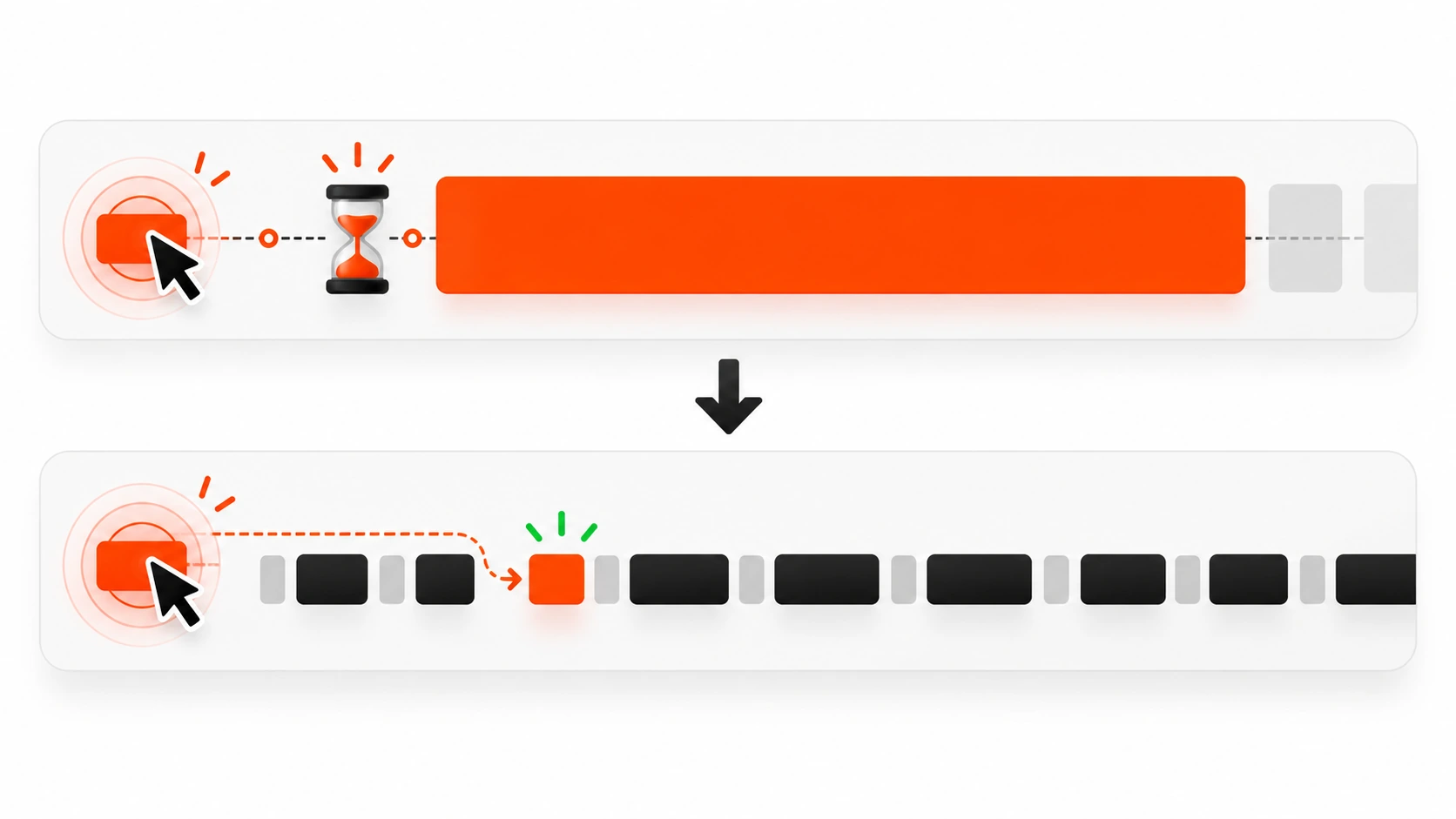
    INP is the sum of those phases for an interaction. If any one of them balloons, the metric suffers. That is why a tiny click handler that triggers a giant re-render can feel just as bad as a page blocked by a huge third-party script.

    Google’s guidance still treats roughly 200 ms or less as good, 200 to 500 ms as needs improvement, and above 500 ms as poor. Those thresholds are not academic. Users feel the difference long before a Lighthouse score turns red.

    Infographic of the three phases of an interaction: input delay, processing, and presentation
    Every interaction has three phases: input delay while the main thread is busy, processing while your event handlers run, and presentation while the browser paints the next frame.

    Why INP Matters More Than a Pretty Score

    Search teams care because Core Web Vitals remain part of page experience signals. Product teams should care for a simpler reason: slow interactions destroy confidence. A checkout button that takes half a second to acknowledge a tap feels broken even when the network is fine. A filter that freezes the page for a second teaches people not to explore.

    I have watched clients celebrate a green LCP while their mobile INP sat in the red because a mega-menu, a chat widget, or a client-side filter was doing too much work on every click. Ranking conversations get easier when the site also feels responsive. Conversion conversations get easier even faster.

    INP also exposes architecture debt. If every button click waits on a global store update, a synchronous analytics flush, or a theme script that walks the whole DOM, you will see it here. Fixing INP often improves maintainability, not just metrics.

    How to Measure INP Without Fooling Yourself

    Lab tools are useful, but they are incomplete. Use them to reproduce, not to declare victory.

    • Chrome DevTools Performance panel: record a click path, look for long tasks around the interaction, and inspect scripting vs rendering time.
    • Lighthouse and PageSpeed Insights: good for spotting likely offenders and field data from the Chrome UX Report when available.
    • Web Vitals JavaScript library: send INP attributions from real users to your analytics so you know which selectors and pages hurt most.
    • Search Console Core Web Vitals report: the production truth for URL groups Google cares about.

    When I debug a client site, I always ask for a real user path: open mobile nav, apply two filters, add to cart, open a modal, type in search. Synthetic homepage loads miss the painful interactions.

    Also watch device reality. A MacBook Pro can hide main-thread problems that a mid-range Android phone makes obvious. If your audience is mobile-heavy in India or other markets with mixed device quality, test on those constraints. Throttle CPU in DevTools when you need a quick local stress test.

    Infographic of a responsiveness gauge comparing a slow page response with a fast one
    Google rates INP as good at 200 ms or less, needs improvement up to 500 ms, and poor above 500 ms, measured at the 75th percentile of real visits.

    The Usual Suspects Behind Bad INP

    Most INP fires I see fall into a short list.

    Heavy event handlers on the main thread

    Click handlers that sort big arrays, rewrite large DOM trees, or call expensive libraries synchronously are classic. React setState that re-renders a huge tree on every keystroke is another. WordPress themes that attach jQuery animations to every menu item still show up in 2026 audits more often than people admit.

    Third-party scripts that steal the thread

    Chat widgets, A/B tools, tag managers with messy containers, heatmaps, and old marketing pixels love to run timers and mutation observers. One slow third party can push an otherwise healthy app into poor INP.

    Layout thrash after interaction

    If your handler reads layout, writes styles, reads again, and forces reflow in a loop, presentation delay explodes. Animated accordions, sticky headers recalculating on every toggle, and carousels that measure every slide on click are frequent offenders.

    Hydration and client islands that wake up late

    On React and Next.js sites, a click that lands while hydration is still busy can feel dead. Large client bundles delay the moment your interactive components are ready. Server Components help the first paint, but any client island that mounts a giant dependency graph still owns the interaction cost.

    Input delay from long tasks before the click

    Sometimes the handler itself is fine. The page is just busy with ads, image decoding work scheduled poorly, or a React concurrent render that never yields. The click waits in line, and INP counts that wait.

    A Practical Fix Order That Works on Real Sites

    I do not start by rewriting the whole frontend. I start with the highest leverage cuts.

    1. Find the exact interaction and element

    Use web-vitals attribution or DevTools to name the page, the element, and the event type. “Homepage is slow” is not a bug report. “Mobile product archive, filter chip click, 780 ms INP, main thread blocked 520 ms by FilterDrawer” is a bug report.

    2. Show immediate visual feedback

    Before the expensive work finishes, update something the user can see: a pressed state, a spinner in the button, an optimistic checkbox, a skeleton in the panel. INP cares about the next paint. A cheap style change that acknowledges the tap can dramatically improve perceived responsiveness even while data is still loading. Just do not fake completion. Acknowledge first, complete second.

    3. Break up long tasks

    If a handler needs more than roughly 50 ms, yield to the browser. In modern browsers, scheduler.yield() (with a setTimeout fallback) or smaller chunks of work help. In React 18+, startTransition marks non-urgent updates so urgent input can paint sooner. For plain JavaScript, split array work, defer non-critical analytics, and move pure computation to a worker when it is truly heavy.

    Infographic comparing one long main-thread task blocking a click with smaller tasks that let the click through
    One long task makes a click wait its turn. Splitting the same work into smaller chunks gives the browser gaps to respond and paint.

    4. Reduce what re-renders or reflows

    In React, memoize expensive lists, push state down, and avoid putting rapidly changing values in a top-level context. In WordPress or vanilla DOM land, update the smallest node you can. Replace whole-table innerHTML rewrites with targeted row updates. Cache DOM queries. Avoid reading layout properties unless you need them.

    5. Defer or remove third parties

    If a widget is not needed for the first interaction on a page, load it after idle or after the user opens the feature. I have fixed more INP issues by delaying a chat script until the chat button is clicked than by micro-optimizing application code. Audit your tag manager. One unused tag with a fat bundle is still a tax on every click.

    6. Prefetch wisely, hydrate selectively

    For Next.js and similar stacks, keep interactive islands small. Lazy-load editors, maps, carousels, and dashboards. Do not hydrate the whole page just because one button needs state. Partial hydration patterns and Server Components exist so your click handlers are not buried under unused client JS.

    React and Next.js Patterns I Reach For

    When the stack is React, these patterns repeatedly help INP:

    • Use startTransition for filter and sort updates that can wait a frame.
    • Keep controlled inputs light; debounce server fetches, not the character paint itself when possible.
    • Virtualize long lists so a click does not reconcile hundreds of nodes.
    • Move analytics to requestIdleCallback or a queue after paint.
    • Avoid giant useEffect chains that run on every interaction-driven prop change.
    • Prefer concurrent-friendly libraries; some date pickers and rich text editors are still expensive on open.

    For Next.js App Router apps, Server Components reduce the default client surface, which is good for INP, but only if you stay disciplined. A “use client” boundary around a whole page brings the old problem back. Put client state at the leaf: the menu, the filter, the modal, the form.

    WordPress-Specific INP Cleanup

    WordPress sites often fail INP for theme and plugin reasons rather than content reasons.

    • Disable unused plugin scripts on templates that do not need them.
    • Replace jQuery UI animations with CSS transitions where a simple open and close is enough.
    • Load mega-menu logic only on header interaction, not on every page load as a blocking suite.
    • Beware page builders that inject large frontend runtimes for a single accordion.
    • Turn off chat, popup, and social proof widgets on checkout and other high-intent templates if they are not essential.
    • Use a performance plugin carefully: caching helps TTFB and LCP more than INP, while deferring scripts can help INP if you do not break needed interactivity.

    I still see themes enqueueing slider scripts sitewide. If the homepage slider is the only consumer, the blog post page should not pay for it when someone clicks a TOC link.

    Accessibility and INP Are Allies

    Keyboard users trigger INP too. Focus changes, Enter and Space on buttons, and Escape to close dialogs are interactions. If your focus trap or modal library does expensive querySelectorAll work on every keydown, both accessibility and INP suffer.

    Build the interaction to be correct first: visible focus, sane tab order, immediate open and close feedback. Then optimize the path. An accessible control that paints a state change quickly is usually good INP as well.

    A Field Checklist You Can Run This Week

    Use this on any site you maintain.

    1. Pull CrUX or Search Console data for INP by template type.
    2. Pick the worst mobile URL group with traffic.
    3. Record three real interactions on a mid-tier phone profile.
    4. Note the longest task and the script URL responsible.
    5. Ship one fix: delay a third party, split a handler, or add optimistic UI.
    6. Re-measure field data over several days, not only one Lighthouse run.
    7. Add a regression guard: performance budget on JS for interactive routes, plus a synthetic click path in CI if you have the maturity for it.

    You do not need a perfect observability stack to start. You need one painful interaction, one owner, and one deploy that makes the next paint sooner.

    Common Mistakes That Waste a Sprint

    • Chasing Lighthouse green while field INP stays red.
    • Optimizing images again when the click path never waited on images.
    • Wrapping everything in memo without measuring, which can add overhead.
    • Moving work to setTimeout(0) chaos instead of structured yielding and prioritization.
    • Removing a feature users need just to win a metric. Cut waste, not value.
    • Declaring victory from a desktop-only test.

    INP is a product quality metric dressed as a search metric. Treat it that way and the SEO benefit becomes a side effect of a better site.

    What Good Looks Like in 2026

    On a healthy marketing site, opening the mobile nav, toggling an FAQ, and submitting the newsletter form should feel instant. On an ecommerce template, filter chips and add-to-cart should acknowledge immediately, with heavier catalog work streamed afterward. On a SaaS dashboard, table sorting can be slightly heavier, but typing and button presses should still stay responsive.

    Teams that win here usually share habits: small client bundles, strict third-party reviews, interaction profiling in code review for UI-heavy PRs, and field monitoring tied to specific components.

    Final Takeaway

    If you only improve one performance habit this quarter, make it this: every important click should paint feedback fast. Measure INP from the field, attribute it to a real element, then remove main-thread work or defer it until after that paint. Whether you ship Next.js, WordPress, or a mixed stack, the browser does not care about your framework loyalty. It cares whether the next frame arrives while the user still trusts your UI.

    Fix the sticky clicks. Rankings, conversions, and your own product pride tend to follow.

  • Cross-Document View Transitions in 2026: Smooth Page Changes Without an SPA

    Cross-Document View Transitions in 2026: Smooth Page Changes Without an SPA

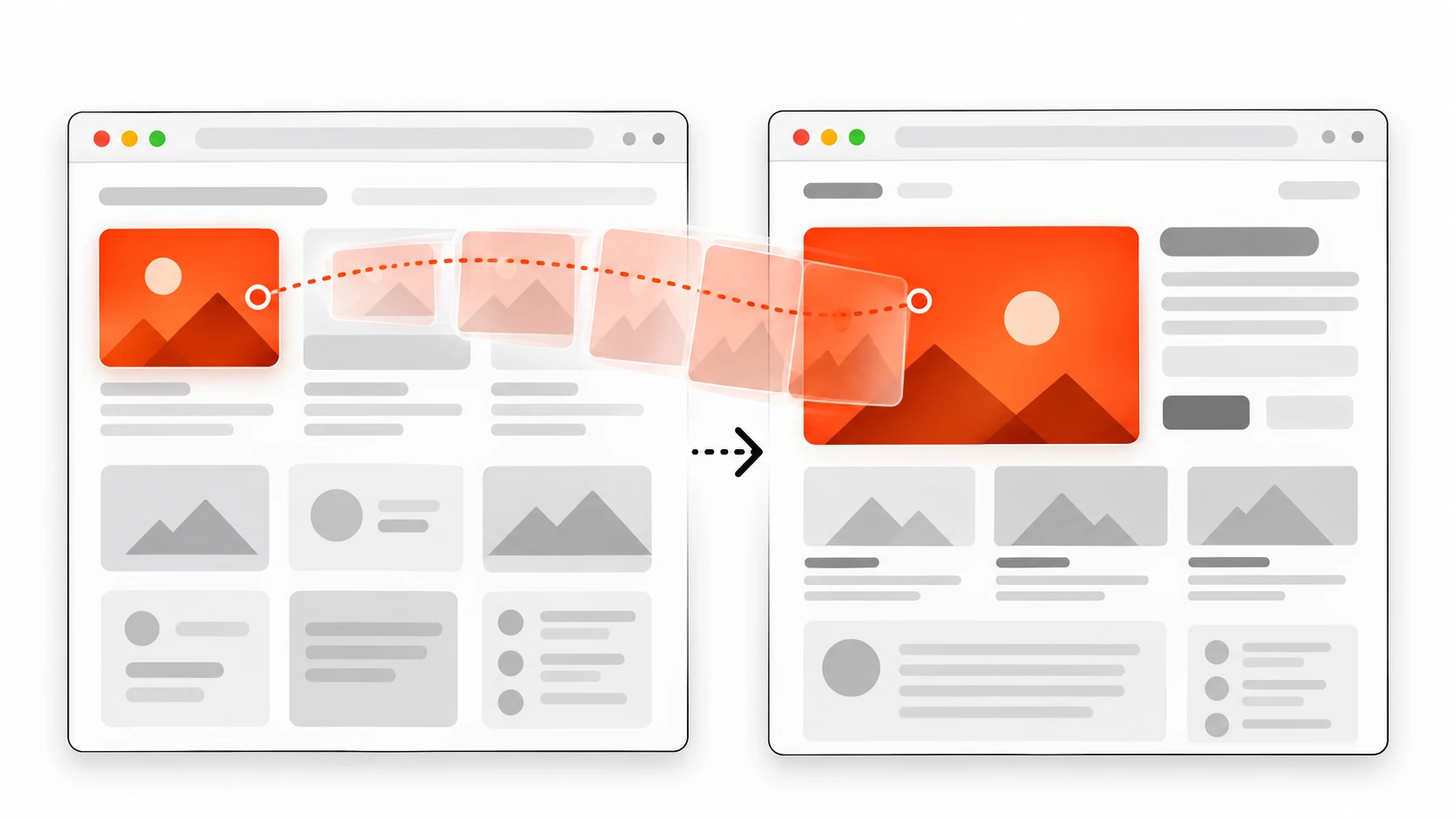
    An image card smoothly morphing from one web page to another during a cross-document view transition

    For years the pitch was simple: if you want smooth page changes, build an SPA. Ship a router, keep the shell mounted, animate the outlet, and accept the JavaScript tax that comes with it. Multi-page apps (MPAs) were “old school” – full document navigations, white flashes, and no shared element morphs.

    In 2026 that trade-off is outdated for a lot of sites. Cross-document view transitions let same-origin navigations between real HTML documents animate like a polished client router – without rewriting your stack into React Router or a framework shell. You opt in with CSS, name the elements that should morph, and optionally customize the lifecycle with pageswap and pagereveal.

    This is a practical tutorial for shipping that on an MPA: the opt-in rule, view-transition-name, custom animations, dynamic names for list-to-detail flows, the gotchas that silently kill transitions (timeout, aspect-ratio warping, BFCache cleanup), progressive enhancement, and when I still reach for an SPA router instead.


    What cross-document view transitions actually are

    Same-document view transitions (the SPA flavor) start when you call document.startViewTransition(). The browser snapshots named elements, runs your DOM update, then animates old-to-new snapshots with CSS.

    Cross-document view transitions reuse that same machinery across two documents. You do not call startViewTransition. The trigger is a normal same-origin navigation – typically a link click – as long as both the outgoing and incoming pages have opted in.

    Mentally:

    1. User activates a same-origin navigation (push/replace/traverse under the rules of navigation: auto).
    2. Browser fires pageswap on the old page, takes old snapshots.
    3. New document loads and initializes; pagereveal fires before first paint.
    4. Browser takes new snapshots and runs the CSS view-transition animations.

    If either page skipped the opt-in, or the navigation is cross-origin, or it took too long, you get a normal navigation. That progressive-enhancement story is why I like this API on marketing sites, docs, blogs, and classic server-rendered product catalogs.


    Browser support in 2026 (ship as enhancement)

    Cross-document view transitions landed in Chromium from Chrome 126 and in Safari from 18.2. Firefox has been catching up on the View Transition family; treat matrix support as “evergreen Chromium + Safari first, everyone else gets instant navigation.”

    Do not make your information architecture depend on the animation. Make the animation a delight on capable browsers. Feature detection can be as simple as CSS:

    @supports (view-transition-name: none) {
      /* progressive enhancement hooks */
    }
    

    Or in JS, check for the events / CSSOM pieces you rely on before attaching fancy pageswap logic.


    The one CSS rule every page needs

    Both documents must opt in. Put this in your global stylesheet so listing pages, detail pages, and secondary pages all participate:

    @view-transition {
      navigation: auto;
    }
    

    That is the whole opt-in. Older experimental docs mentioned a meta tag. Ignore that path – the CSS at-rule is the current contract.

    navigation: auto covers common same-origin navigations such as push/replace (when not initiated purely through browser chrome like typing a URL) and traverse (back/forward). Address-bar navigations, bookmarks, and reloads are excluded from auto for good reason – users did not ask for a theatrical transition when they paste a URL.

    Important: both ends matter. If page A opts in and page B does not, there is no cross-document transition between them.


    Default experience: cross-fade the whole page

    With only the opt-in rule, participating navigations get a default root cross-fade. For many content sites that alone feels dramatically better than a hard cut – especially when pages share a header and similar layout.

    You can customize the root animation with the view-transition pseudo-elements:

    ::view-transition-old(root) {
      animation: fade-out 220ms ease-out both;
    }
    
    ::view-transition-new(root) {
      animation: fade-in 220ms ease-in both;
    }
    
    @keyframes fade-out {
      to { opacity: 0; }
    }
    
    @keyframes fade-in {
      from { opacity: 0; }
    }
    

    Keep durations short. View transitions should feel like spatial continuity, not a loading screen cosplay.


    Shared elements with view-transition-name

    The magic people expect from SPA demos is shared-element morphing: a card thumbnail grows into the hero, a title slides into the article heading. That requires the same view-transition-name on the corresponding elements in both documents.

    /* Listing card image */
    .card[data-id="42"] img {
      view-transition-name: product-hero-42;
    }
    
    /* Detail page hero */
    .product-hero {
      view-transition-name: product-hero-42;
    }
    

    Names must be unique among captured elements on a given page at snapshot time. Duplicate names cause the transition to skip. That is why painting every list item with a permanent unique name can get awkward on large grids – and why dynamic assignment in pageswap / pagereveal exists.

    Also name stable chrome when it helps:

    .site-header {
      view-transition-name: site-header;
    }
    
    .site-footer {
      view-transition-name: site-footer;
    }
    

    If the header is identical across pages, morphing it (or excluding it from the root fade) reduces the “whole page dissolves” feeling.


    Custom morph animations (old and new snapshots)

    Each named transition creates a pair of snapshots you can style:

    ::view-transition-old(product-hero-42),
    ::view-transition-new(product-hero-42) {
      animation-duration: 320ms;
      animation-timing-function: cubic-bezier(0.22, 1, 0.36, 1);
      /* Help aspect-ratio changes feel less stretchy */
      object-fit: cover;
      overflow: clip;
    }
    

    You can also hide the root animation when a named hero should carry the visual story:

    ::view-transition-old(root),
    ::view-transition-new(root) {
      animation: none;
      mix-blend-mode: normal;
    }
    

    Use that sparingly. Turning off root can look great for list-to-detail and terrible for unrelated page jumps.


    pageswap and pagereveal: dynamic control

    Hard-coding names for every card does not scale. The HTML lifecycle events let you assign names just-in-time.

    • pageswap – fires on the outgoing page before the last frame / old snapshots.
    • pagereveal – fires on the incoming page after init/reactivation, before first render opportunity.

    Both expose event.viewTransition when a transition is about to happen (guard with if (!event.viewTransition) return;). On pageswap you also get navigation activation info via event.activation so you can read the destination URL.

    window.addEventListener("pageswap", async (e) => {
      if (!e.viewTransition) return;
    
      const toURL = new URL(e.activation.entry.url);
      const id = toURL.pathname.match(/\/products\/([^/]+)/)?.[1];
      if (!id) return;
    
      const img = document.querySelector(`.card[data-id="${CSS.escape(id)}"] img`);
      if (!img) return;
    
      img.style.viewTransitionName = `product-hero-${id}`;
    
      // Cleanup for BFCache - do not leave names stuck on restored pages
      try {
        await e.viewTransition.finished;
      } catch (_) {
        /* aborted transitions (e.g. some bfcache paths) */
      }
      img.style.viewTransitionName = "none";
    });
    

    On the detail page, the hero can keep a stable CSS name, or you can mirror the same temporary assignment in pagereveal and clear it after e.viewTransition.ready.

    Critical: register pagereveal early

    pagereveal must run before the first rendering opportunity. Register it in a classic, parser-blocking script in <head> – not a deferred module that wakes up too late. If you must load asynchronously, mark the script render-blocking with blocking="render" where supported.

    <head>
      <script src="/js/view-transitions.js"></script>
      <!-- classic, no type=module, no defer/async unless blocking=render -->
    </head>
    

    View transition types for directional motion

    Pagination and stack navigators feel better with direction: forwards slides one way, backwards the other. Cross-document transitions support types.

    Declare defaults in CSS:

    @view-transition {
      navigation: auto;
      types: slide, forwards;
    }
    

    Or set them in events:

    window.addEventListener("pagereveal", (e) => {
      if (!e.viewTransition) return;
      const type = determineTransitionType(
        navigation.activation.from,
        navigation.activation.entry
      );
      e.viewTransition.types.add(type);
    });
    

    Then style with :active-view-transition-type():

    html:active-view-transition-type(forwards) {
      &::view-transition-old(content) {
        animation-name: slide-out-to-left;
      }
      &::view-transition-new(content) {
        animation-name: slide-in-from-right;
      }
    }
    
    html:active-view-transition-type(backwards) {
      &::view-transition-old(content) {
        animation-name: slide-out-to-right;
      }
      &::view-transition-new(content) {
        animation-name: slide-in-from-left;
      }
    }
    

    Types are not automatically copied from the old page’s ViewTransition object to the new one – decide types on the incoming side (and sometimes outgoing) explicitly.


    Gotcha #1: the roughly 4-second timeout

    If the navigation takes too long – on the order of four seconds in Chromium – the browser skips the view transition with a timeout. Slow TTFs, giant uncached HTML, blocking third-party scripts in <head>, or waiting on non-critical CSS can all burn the budget.

    What to do:

    • Keep MPA pages fast. View transitions reward good performance; they do not forgive bad TTFB.
    • Consider Speculation Rules / prerender for predictable next navigations so the new document is warm.
    • Avoid render-blocking work you do not need before first paint.
    • Do not assume the transition always runs – design for instant navigation as the baseline.

    If you are debugging “why did my morph disappear?”, open DevTools, watch for skipped transitions / timeout errors, and measure navigation timing on a throttled profile.


    Gotcha #2: aspect-ratio warping (funhouse mirrors)

    When a thumbnail (1:1) morphs into a wide hero (16:9), the default geometry interpolation can stretch bitmap content in an ugly way. This is one of the most common “demo looked great, production looks cursed” issues.

    Mitigations that helped me:

    • Prefer similar aspect ratios for paired elements when design allows.
    • Use object-fit: cover on the group/image snapshots and clip overflow.
    • Animate with a nested structure: morph a frame, cross-fade the image inside.
    • For extreme ratio changes, soften the effect – shorter duration, or only fade instead of a full geometry morph.
    ::view-transition-group(product-hero) {
      animation-duration: 280ms;
    }
    
    ::view-transition-old(product-hero),
    ::view-transition-new(product-hero) {
      object-fit: cover;
      overflow: clip;
    }
    

    Test real product photography, not only vector illustrations. Photos make warping obvious.


    Gotcha #3: BFCache and leftover names

    Pages restored from the back-forward cache can still participate in lifecycle events. If you leave temporary view-transition-name values stuck on elements, the next navigation may see duplicate names and skip the transition – or you may see aborted transition promise rejections.

    Patterns that stay sane:

    • Always clear temporary names after finished (outgoing) or ready (incoming).
    • Attach .catch(() => {}) (or proper handling) to ready/finished so aborted BFCache-related transitions do not spam unhandled rejections.
    • Prefer a small helper like setTemporaryViewTransitionNames(entries, promise) so cleanup is consistent.

    Render blocking and first paint stability

    Sometimes the new page’s first paint is missing the hero you planned to morph into – fonts swap, images not in DOM yet, late HTML streaming. You can declare expected elements with render-blocking link expectations:

    <link rel="expect" blocking="render" href="#product-hero" />
    

    Use this carefully. Blocking render can hurt Core Web Vitals if abused. Prefer structuring HTML so the named hero is in the first chunk, and only block when you have measured a real flash.


    Accessibility and reduced motion

    Motion is content-adjacent UX, not decoration you force on everyone.

    @media (prefers-reduced-motion: reduce) {
      ::view-transition-group(*),
      ::view-transition-old(*),
      ::view-transition-new(*) {
        animation: none !important;
      }
    }
    

    Also keep focus management sane: after navigation, ensure the new page lands focus appropriately (main landmark, heading, or restored scroll) according to your site’s a11y practice. A beautiful morph that dumps keyboard users in nowhere is still a bug.


    MPA vs SPA routers: when I pick which

    Cross-document view transitions shine when:

    • Your pages are already server-rendered or statically generated.
    • Navigations are document-based and same-origin.
    • You want shared-element moments without maintaining a client router.
    • Progressive enhancement is a product requirement.

    I still reach for an SPA (or a hybrid islands approach) when:

    • The UI is highly stateful across routes (complex editors, canvases, multi-step wizards with heavy client state).
    • You need transitions that are not navigation-shaped (reordering lists in place, gesture-driven sheet stacks).
    • Offline-first shells or non-document interaction models dominate.

    Same-document startViewTransition remains perfect inside an SPA. Cross-document is the MPA complement, not a religion against client routers.


    Minimal end-to-end checklist

    1. Add @view-transition { navigation: auto; } to the global CSS on all participating pages.
    2. Smoke-test a link click in a supporting browser – you should see a root cross-fade.
    3. Add matching view-transition-name values for one hero pair.
    4. Customize old/new animations; fix aspect-ratio stretching.
    5. Move list-to-detail names into pageswap/pagereveal with cleanup.
    6. Add reduced-motion overrides.
    7. Throttle network and confirm timeout behavior fails open (normal navigation).
    8. Test back/forward + BFCache paths for leftover names and console noise.

    Production patterns I actually ship

    Docs and blogs: root cross-fade plus a named title or cover image is enough. Low risk, high polish.

    Product grids: temporary names on the clicked card image and title only. Do not name every card forever.

    Multi-step marketing funnels: directional types for next/back between steps that are still separate documents.

    WordPress / classic CMS themes: enqueue the opt-in CSS globally; add a tiny head script for reveal/swap only where templates share heroes.

    Pair this with solid caching and image CDN discipline. The API makes fast sites feel cinematic. Slow sites still feel slow – they just fail the transition budget more often.


    Debugging tips

    • Confirm both documents include the opt-in CSS (view source on each URL).
    • Check uniqueness of view-transition-name at snapshot time.
    • Log event.viewTransition in swap/reveal – null means no active transition.
    • Watch for timeout skips under Slow 4G.
    • Temporarily outline named elements before navigation to verify selectors.
    • Validate that pagereveal listeners are not deferred modules arriving late.

    How this differs from other modern CSS motion

    Scroll-driven animations are about tying progress to scrollport. Anchor positioning is about tethering floating UI to a trigger. Cross-document view transitions are about continuity across navigations. They solve different problems. You can combine them on one site, but do not conflate the APIs in your mental model – or in your CSS architecture.


    Wrap-up

    Cross-document view transitions give MPAs a legitimate path to SPA-like continuity: opt in with @view-transition, morph shared UI with view-transition-name, customize with pseudo-elements and types, and use pageswap/pagereveal for dynamic list-to-detail flows. Respect the timeout, fix aspect-ratio warping, clean up names for BFCache, and honor reduced motion.

    You do not need to burn your server-rendered architecture to get buttery navigations in 2026. Start with a global opt-in and one shared hero. If that feels good in production analytics and user feedback, deepen the choreography. If your product is actually an application shell, keep the SPA router and use same-document transitions there instead.

    Ship the enhancement. Keep the documents. Let the browser do the morph.