
Category: WordPress & SEO

WordPress performance, development myths and technical SEO like structured data and schema markup.

  • JSON-LD Structured Data in 2026: Schema Markup That Still Earns Rich Results

    JSON-LD Structured Data in 2026: Schema Markup That Still Earns Rich Results

    Flat vector illustration of a web page card whose hidden JSON-LD code panel links its article, breadcrumb and organization nodes into one connected graph, with the key node in orange-red

    A few months ago a client sent me a worried message: “Our FAQ dropdowns disappeared from Google. Did the new site break our SEO?” They had paid an agency the year before to add FAQ schema to every service page, and they were watching a Search Console report flatline. I opened the pages and found four separate JSON-LD blocks on each one: two Organization blocks with different logos, an FAQPage block on pages that had no visible FAQ, and a Review block giving the business five stars from itself. Nothing on the new site was broken. The markup had simply been written for a version of Google Search that no longer exists.

    That conversation is why I wanted to write this guide. JSON-LD structured data is still one of the most useful things a developer can add to a site in 2026, but the list of rich results it unlocks has shrunk, the rules have tightened, and a lot of advice online is two or three years out of date. In this post I will walk through what structured data actually does today, which schema types are still worth your time, how I build one clean, connected graph instead of a pile of random blocks, how I ship it in Next.js, React and WordPress, and how I test it so it never silently breaks.

    What structured data actually does in 2026

    Structured data is a machine-readable description of a page, written with the shared vocabulary from schema.org. JSON-LD is the format Google recommends because it lives in a single script tag and does not tangle itself into your HTML the way Microdata and RDFa do:

    <script type="application/ld+json">
    {
      "@context": "https://schema.org",
      "@type": "BlogPosting",
      "headline": "JSON-LD Structured Data in 2026",
      "datePublished": "2026-10-07T09:00:00+05:30"
    }
    </script>

    Before we write a line of it, it helps to be honest about what it does and does not do.

    • It is not a ranking factor. Google has said this consistently. Markup helps Google understand the page and can make it eligible for a richer appearance, but it does not push a weak page up the results.
    • Eligibility is not a guarantee. Even perfect markup that passes every test only makes a page eligible. Google decides per query, per device and per user whether a rich result is shown at all.
    • It must describe what people can see. Google’s general structured data guidelines say not to mark up content that is hidden from readers, and that the markup must be a true representation of the page. Markup that contradicts the page can lead to a structured data manual action, which removes rich result eligibility.
    • There is no special schema for AI features. Google’s documentation on AI features in Search says you do not need new machine-readable files or special schema.org markup to appear in AI Overviews or AI Mode. What it does ask is that your structured data matches the visible text on the page.

    So the job in 2026 is not “add as much schema as possible”. The job is to describe your real content accurately, in the handful of types that still matter, with markup that is consistent across the whole site.

    Which schema types are still worth your time

    Google’s search gallery has been pruned hard over the last three years. When I audit a site, I sort the markup into two buckets.

    Still pulling their weight

    • Article, BlogPosting and NewsArticle. Helps Google show the right title, images and dates for articles in Google Search and Google News. There are no required properties, only recommended ones.
    • BreadcrumbList. Breadcrumb trails in results. Google’s documentation now lists the feature as available on desktop; on mobile, results show the site name and domain instead, so treat this as a desktop win.
    • Organization and its subtypes. Feeds the logo, name and administrative details Google uses in knowledge panels and other visual elements. OnlineStore, LocalBusiness and its subtypes add merchant and local details.
    • WebSite. Used on the home page to tell Google your preferred site name with name and alternateName.
    • ProfilePage. For a page that is mainly about one person or organization, such as an author bio or a freelancer’s about page.
    • Product, Offer and merchant listings. Still a big one for stores, and Google keeps adding properties here. In 2026 alone it documented category and sale price date guidance for merchant listings.
    • Event, JobPosting, Recipe, VideoObject, LocalBusiness, review snippets and a few other vertical types, where your content genuinely fits them.

    Retired or restricted

    • FAQ rich results. Restricted in August 2023 to well-known government and health sites. Then, as of May 7, 2026, Google stopped showing FAQ rich results entirely, removed the documentation on June 15, 2026, dropped the Rich Results Test and Search Console report in June, and removed Search Console API support in August 2026.
    • How-to rich results. Gone on desktop and mobile since 2023.
    • Sitelinks search box. Removed from results in November 2024, so the potentialAction SearchAction on your WebSite markup no longer does anything in Google.
    • The June 2025 batch. Course info, Claim Review, estimated salary, learning video, special announcement and vehicle listing were phased out. Practice problem followed, with its documentation removed in January 2026. Dataset markup is now only used by Dataset Search, not Google Search.
    • Self-serving reviews. Star ratings that a LocalBusiness or Organization publishes about itself on its own site have not been eligible for review snippets since 2019.

    Should you delete your FAQPage markup?

    Not in a panic. FAQPage is still a valid schema.org type, and other search engines, tools and platforms can read it. On my own blog every post has a visible FAQ section and I still output FAQPage for it, because it accurately describes real content on the page. But I no longer expect a Google rich result from it, and I tell clients not to pay anyone to add FAQ schema for that reason. The rule I follow: if the FAQ is visible and useful, the markup can stay; if the markup exists only to game a feature that is gone, remove it. And do not swap it for QAPage. QAPage is for a page with one question and answers submitted by users, like a forum thread, not for a list of questions you wrote yourself.

    Infographic comparing structured data types that still earn Google rich results, such as Article, Breadcrumb, Organization and Product, with retired ones such as FAQ, How-to and the sitelinks search box
    Infographic 1: Still worth it in 2026 – Article, Breadcrumb (desktop), Organization, WebSite, Product. Retired – FAQ (May 2026), How-to, sitelinks search box.

    Build one connected graph, not a pile of blocks

    The most common technical mess I find is not invalid JSON. It is fragmentation. A theme outputs an Organization, an SEO plugin outputs another Organization, a reviews widget outputs a third, and nothing tells Google these are the same entity. Each block is valid on its own, and together they are noise.

    The fix is to use @graph with stable @id values. An @id is just a URL-shaped identifier for an entity. I use the canonical URL plus a hash fragment, like https://example.com/#organization. Once an entity has an @id, every other node can reference it instead of repeating it.

    Here is the graph I use as a starting point for a blog post on a freelancer or small agency site:

    {
      "@context": "https://schema.org",
      "@graph": [
        {
          "@type": "Person",
          "@id": "https://example.com/#person",
          "name": "Asha Mehta",
          "url": "https://example.com/about",
          "jobTitle": "Freelance Web Developer",
          "sameAs": [
            "https://www.linkedin.com/in/example",
            "https://github.com/example"
          ]
        },
        {
          "@type": "WebSite",
          "@id": "https://example.com/#website",
          "url": "https://example.com/",
          "name": "Asha Mehta",
          "publisher": { "@id": "https://example.com/#person" }
        },
        {
          "@type": "BlogPosting",
          "@id": "https://example.com/blog/my-post#article",
          "mainEntityOfPage": "https://example.com/blog/my-post",
          "headline": "How I Cut Page Weight in Half",
          "image": [
            "https://example.com/img/my-post-16x9.webp",
            "https://example.com/img/my-post-4x3.webp",
            "https://example.com/img/my-post-1x1.webp"
          ],
          "datePublished": "2026-10-07T09:00:00+05:30",
          "dateModified": "2026-10-07T09:00:00+05:30",
          "author": { "@id": "https://example.com/#person" },
          "publisher": { "@id": "https://example.com/#person" },
          "isPartOf": { "@id": "https://example.com/#website" }
        },
        {
          "@type": "BreadcrumbList",
          "@id": "https://example.com/blog/my-post#breadcrumb",
          "itemListElement": [
            { "@type": "ListItem", "position": 1, "name": "Home", "item": "https://example.com/" },
            { "@type": "ListItem", "position": 2, "name": "Blog", "item": "https://example.com/blog" },
            { "@type": "ListItem", "position": 3, "name": "How I Cut Page Weight in Half" }
          ]
        }
      ]
    }

    A few details in there are deliberate. The Person is defined once and referenced by @id as both author and publisher. The last breadcrumb has no item, which Google’s breadcrumb documentation allows: if the final item has no URL, Google uses the URL of the page itself. And every URL is absolute, because relative URLs in JSON-LD are a common source of quiet errors.

    If you run a company rather than a personal brand, swap the Person for an Organization with a logo, and keep the Person as the author. Google’s Organization guidance recommends putting the full organization details on the home page or a single about page; you do not need to repeat them on every page. On other pages, a reference to the @id is enough.
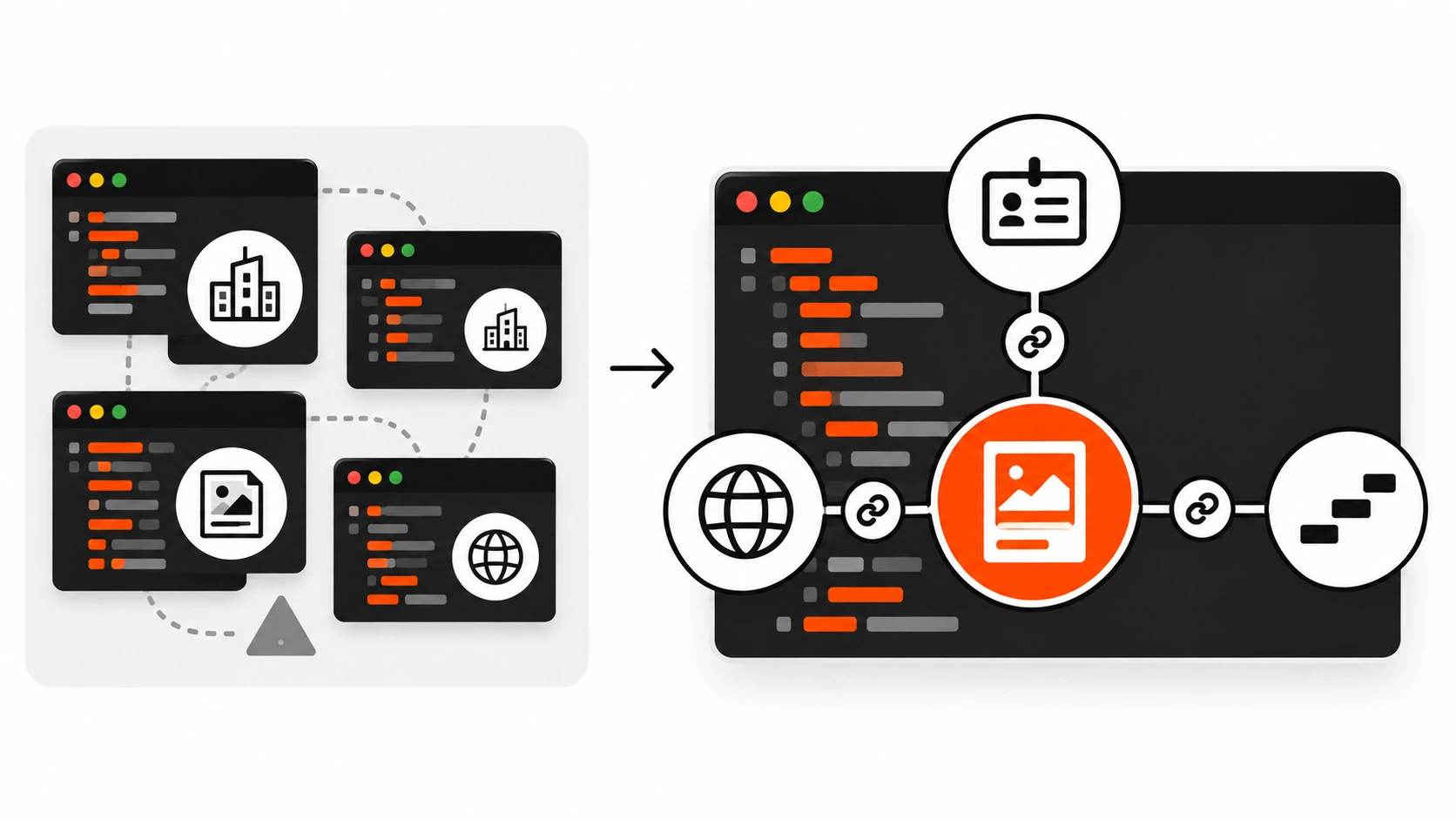
    Infographic of one connected JSON-LD graph where Person, WebSite, BlogPosting and BreadcrumbList nodes reference each other through stable @id links instead of duplicate blocks
    Infographic 2: One @graph, many nodes – Person, WebSite, BlogPosting and BreadcrumbList linked by stable @id values instead of duplicate blocks.

    Article and BlogPosting markup that matches the page

    For articles, I treat Google’s recommended properties as a checklist and fill only what is true:

    • headline: the real title of the article, concise enough not to be truncated.
    • image: images that represent the article, not your logo. Google recommends several high-resolution images of at least 50,000 pixels (width times height) in 16×9, 4×3 and 1×1 ratios, and the URLs must be crawlable and indexable. In March 2026 Google also clarified that it uses both schema.org markup and the og:image meta tag when choosing image thumbnails, so keep those two pointing at the same image.
    • datePublished and dateModified: ISO 8601 with a timezone offset, like 2026-10-07T09:00:00+05:30. Without the offset, Google falls back to Googlebot’s timezone. Only change dateModified when the content really changes. Bumping it on every deploy to look fresh is exactly the kind of thing that erodes trust in your dates.
    • author: a Person or Organization with a name and a url or sameAs that uniquely identifies them. Google’s author best practices are specific: only the name goes in author.name (no job title, no “Posted by”), list every author who appears on the page as a separate entry, and use the Person type for people.

    The thing I check most carefully is consistency. The headline in JSON-LD should match the H1, the dates should match the dates printed on the page, and the author should match the byline. If your CMS shows “Updated October 7” in the article but the markup still says July, fix the template, not just the post.

    Breadcrumbs and site names

    BreadcrumbList is the easiest win on most sites because the data already exists in your navigation. The required pieces are an ordered itemListElement of ListItems, each with a position starting at 1, a name, and an item URL (optional for the last one). Two rules I follow:

    1. Only mark up breadcrumbs that are visible on the page. If your design has no breadcrumb trail, add one for users first, then mark it up.
    2. Model the trail on how a person thinks about the site, not on your raw URL structure. A product at /p/48213 can still have the trail Home, Shoes, Running.

    For site names, Google reads WebSite structured data on the home page. Put the name you want shown in name, an acronym or shorter version in alternateName, and make sure the same name appears in your title tag, og:site_name and visible branding. Inconsistency here is why some sites show their domain instead of their brand name.

    Shipping JSON-LD in Next.js, React and WordPress

    The markup is only half of the work. The other half is getting it into the HTML reliably, without introducing a security hole.

    Next.js App Router

    The current Next.js guide recommends rendering JSON-LD as a native script tag inside your page.tsx or layout.tsx, not with next/script, because structured data is not executable code. The same guide warns that JSON.stringify does not sanitise strings, so a title containing a closing script tag could break out of the block. Its suggested fix is to replace every < with its unicode escape. Here is how I write it for a blog post page:

    // app/blog/[slug]/page.tsx
    import type { BlogPosting, WithContext } from 'schema-dts'
    import { getPost } from '@/lib/posts'
    
    export default async function Page({ params }: { params: Promise<{ slug: string }> }) {
      const { slug } = await params
      const post = await getPost(slug)
      const url = `https://example.com/blog/${slug}`
    
      const jsonLd: WithContext<BlogPosting> = {
        '@context': 'https://schema.org',
        '@type': 'BlogPosting',
        headline: post.title,
        image: [post.featuredImage],
        datePublished: post.publishedAt,
        dateModified: post.updatedAt,
        mainEntityOfPage: url,
        author: { '@type': 'Person', name: post.author.name, url: post.author.url },
      }
    
      return (
        <article>
          <script
            type="application/ld+json"
            dangerouslySetInnerHTML={{
              __html: JSON.stringify(jsonLd).replace(/</g, '\\u003c'),
            }}
          />
          <h1>{post.title}</h1>
          {/* ... */}
        </article>
      )
    }

    The schema-dts package gives you TypeScript types for schema.org, so a typo like datePublised fails the build instead of failing silently in production. If you have a strict Content Security Policy, note that a JSON-LD script is a data block, not a script the browser executes, so it is not blocked the way inline JavaScript is. I covered the rest of that setup in my guide to Content Security Policy in 2026.

    Client-side React and headless sites

    Google can process structured data that JavaScript adds to the DOM, as long as the rendered page contains it. But rendering is a second step that can be delayed, and Google itself warns that dynamically generated Product markup can make Shopping crawls less frequent and less reliable. My rule is simple: if the markup can be in the server or prerendered HTML, put it there. On headless WordPress builds like my own site, I generate the JSON-LD from the same API data the page uses, so the title, dates and FAQ text can never drift from what is on screen.

    WordPress

    On WordPress, your SEO plugin probably already outputs a graph. Yoast SEO and Rank Math both build an @graph with WebSite, WebPage, Article and BreadcrumbList nodes. So step one is to look before you add anything, because a second hand-written Organization block next to the plugin’s is how fragmentation starts. If you need to extend the plugin’s output, use its own hooks (Yoast has the wpseo_schema_graph filter, Rank Math has rank_math/json_ld) so your nodes join the same graph.

    For a custom theme without an SEO plugin, I output the block from wp_head and let WordPress handle the encoding:

    add_action( 'wp_head', function () {
        if ( ! is_singular( 'post' ) ) {
            return;
        }
        $post = get_queried_object();
        $data = array(
            '@context'      => 'https://schema.org',
            '@type'         => 'BlogPosting',
            'headline'      => get_the_title( $post ),
            'datePublished' => get_the_date( 'c', $post ),
            'dateModified'  => get_the_modified_date( 'c', $post ),
            'image'         => get_the_post_thumbnail_url( $post, 'full' ),
            'author'        => array(
                '@type' => 'Person',
                'name'  => get_the_author_meta( 'display_name', $post->post_author ),
                'url'   => get_author_posts_url( $post->post_author ),
            ),
        );
        echo '<script type="application/ld+json">'
            . wp_json_encode( $data, JSON_UNESCAPED_SLASHES | JSON_HEX_TAG )
            . '</script>' . "\n";
    } );

    JSON_HEX_TAG does the same job as the Next.js replace: it encodes < and > so no post title can close the script tag early. The c date format gives you ISO 8601 with the site’s timezone offset.

    Testing and monitoring so it never silently breaks

    Structured data fails quietly. A template change drops a property, a plugin update adds a duplicate block, and nobody notices until a report dips months later. I use four layers:

    1. Rich Results Test for the types Google still supports as rich results. It shows exactly which features a URL is eligible for and flags critical errors. Remember it no longer validates FAQ markup.
    2. Schema Markup Validator at validator.schema.org for everything else, including types Google does not use. It checks your markup against the schema.org vocabulary itself.
    3. URL Inspection in Search Console after deploy, to see the page as Googlebot rendered it, which matters if any markup comes from JavaScript.
    4. Search Console rich result reports over time, such as the Breadcrumbs, Product snippets and Merchant listings reports, to catch spikes in invalid items after a release.

    On top of that, I add a cheap automated check to the end-to-end suite so a broken block fails CI before it ships. With Playwright it is only a few lines:

    import { test, expect } from '@playwright/test'
    
    test('blog post has valid JSON-LD', async ({ page }) => {
      await page.goto('/blog/my-post')
      const blocks = await page.locator('script[type="application/ld+json"]').allTextContents()
      expect(blocks.length).toBeGreaterThan(0)
      const parsed = blocks.map((b) => JSON.parse(b))
      const article = parsed.flatMap((d) => d['@graph'] ?? [d]).find((n) => n['@type'] === 'BlogPosting')
      expect(article?.headline).toBe(await page.locator('h1').innerText())
    })

    That last assertion is my favourite: it fails the build the moment the markup headline drifts away from the visible H1. If you have not set up Playwright yet, my Playwright testing guide walks through it.
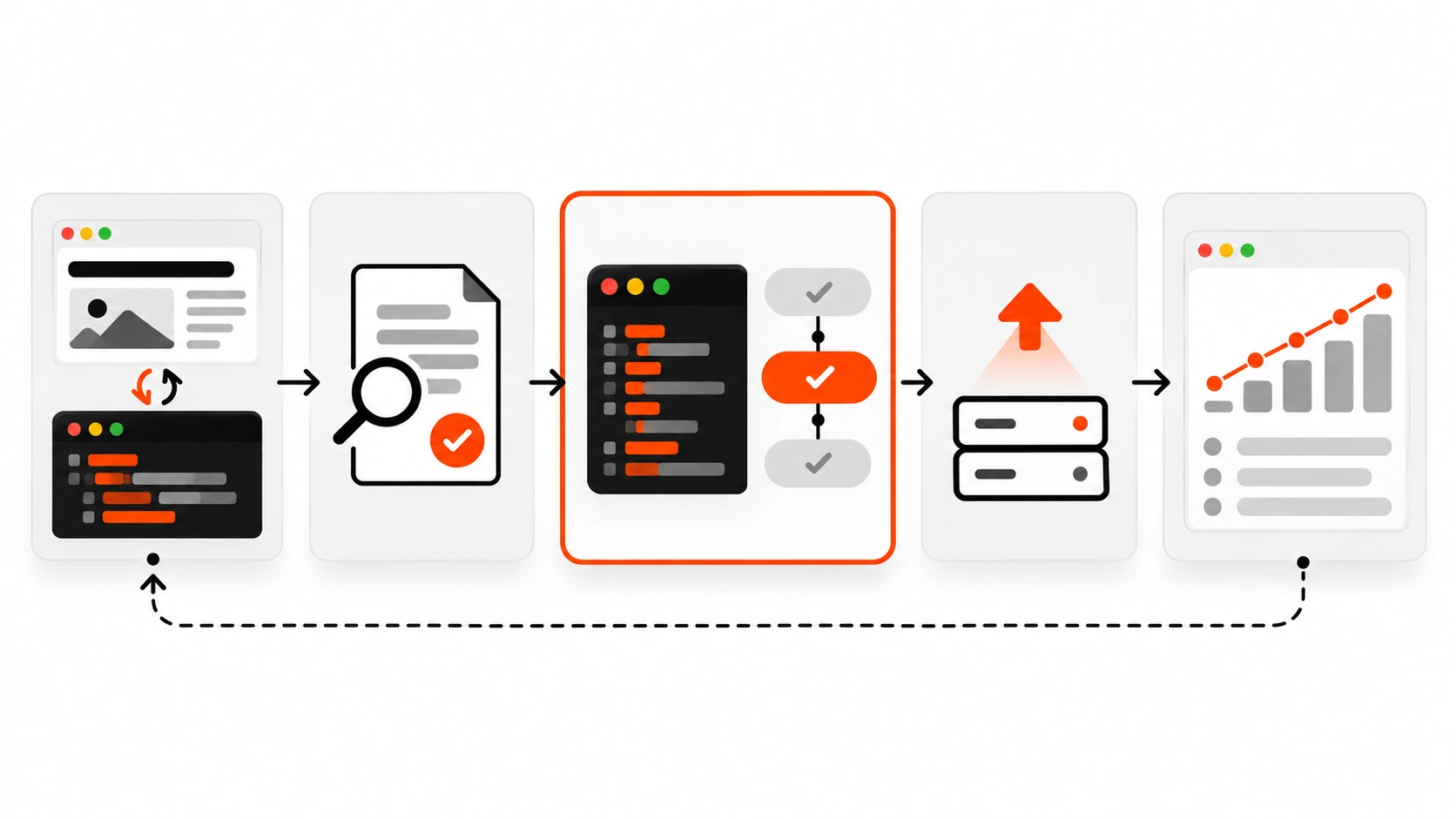
    Infographic of a structured data quality pipeline: generate JSON-LD from page data, validate with the Rich Results Test and Schema Markup Validator, test in CI, deploy, then monitor in Search Console
    Infographic 3: Generate from page data, validate (Rich Results Test and Schema Markup Validator), test in CI, deploy, then monitor in Search Console.

    Mistakes I keep finding in audits

    • Duplicate entities. Two or three Organization blocks with different names or logos. Pick one source of truth and connect everything with @id.
    • Markup for invisible content. FAQPage on pages with no FAQ, Review stars with no reviews on the page, or prices that do not match the visible price.
    • Self-serving review stars. A business rating itself on its own site. Not eligible, and risky.
    • Stale or fake dates. dateModified that changes on every deploy, or dates without a timezone offset.
    • Relative or blocked URLs. Images and item URLs that are relative, or that point at files blocked by robots.txt.
    • Dead features. HowTo blocks, SearchAction for a sitelinks search box, and FAQ schema added purely for a rich result that Google no longer shows.
    • Logo problems. Organization logos smaller than the 112×112 pixel minimum, or white logos that disappear on a white background, which Google specifically warns about.
    • Unescaped output. JSON-LD built with string concatenation instead of a JSON encoder, which breaks on the first title with a quote mark and can open an XSS hole.

    My JSON-LD structured data checklist

    This is the list I run before I hand a site over to a client:

    1. Every page has at most one JSON-LD graph per source, and entities are linked by stable @id values.
    2. The home page has WebSite markup with the preferred site name, plus Organization (or Person) details with a logo of at least 112×112 pixels.
    3. Every article has BlogPosting or Article with headline, image, datePublished, dateModified and author that match the visible page.
    4. Article images are crawlable, at least 50,000 pixels, and ideally offered in 16×9, 4×3 and 1×1.
    5. The image in markup and the og:image tag point to the same preferred image.
    6. Dates are ISO 8601 with a timezone offset, and dateModified only changes with real edits.
    7. BreadcrumbList matches a visible breadcrumb trail, with positions starting at 1 and absolute URLs.
    8. No markup for hidden content, self-serving reviews, or retired features like HowTo and the sitelinks search box.
    9. FAQPage is kept only where a real, visible FAQ exists, with no expectation of a Google rich result.
    10. Output is encoded safely: JSON_HEX_TAG in PHP, or escaping < in JavaScript.
    11. Markup is in the server-rendered or prerendered HTML wherever possible.
    12. Key templates pass the Rich Results Test and the Schema Markup Validator.
    13. An automated test parses every JSON-LD block and compares the headline with the H1.
    14. Search Console is verified, and rich result reports are checked after each release.

    Conclusion

    Structured data in 2026 is less about collecting rich results and more about being precise. Google has retired the features that were easiest to abuse, FAQ and HowTo among them, and kept the ones that describe real things: articles, breadcrumbs, organizations, products, people. That is good news for developers who care about doing it properly, because the work is now mostly engineering hygiene. Generate the markup from the same data that renders the page, keep one connected graph, encode it safely, and test it like any other critical output.

    If you start with just three things this week, make them these: remove duplicate and dead markup, add a clean BlogPosting and BreadcrumbList to your article template, and add one automated test that fails when the markup drifts from the page. That is a small amount of work, and it keeps paying off long after the next round of search changes.


  • WordPress Performance in 2026: Cut Plugin Bloat and TTFB Without Breaking Features

    WordPress Performance in 2026: Cut Plugin Bloat and TTFB Without Breaking Features

    Vector illustration of WordPress performance tuning cutting plugin bloat and improving TTFB

    I still get the same Slack screenshot every few months.

    A client homepage that “used to feel snappy.” PageSpeed is red. The sales page takes a breath before the first paint. Someone already installed three caching plugins, a database cleaner, and a mystery “booster” from a Black Friday email. Features still work. The site still feels heavy.

    WordPress is not slow because you have “too many plugins.”

    It is slow because a couple of them do expensive work on every request, your page cache is fighting itself, autoloaded options grew quietly for years, and nobody measured Time to First Byte before guessing.

    This is the playbook I use on client WordPress sites in 2026: measure first, name the guilty plugin with Query Monitor, keep one page-cache layer, add Redis where full-page cache cannot help, clean wp_options autoload carefully, and only then trim front-end assets so Core Web Vitals have a chance.

    Start with TTFB, not another plugin

    Open Chrome DevTools. Network tab. Disable cache. Reload the HTML document. Read Waiting (TTFB).

    Rough ranges I use in audits:

    • Under 200ms on a cached public page: healthy for most marketing sites
    • 200ms to 600ms: look at hosting, edge cache headers, and whether you are actually getting a cache hit
    • Over 600ms on a page that should be cached: hosting or cache configuration problem
    • Over 800ms on an intentionally uncached response (cart, account, personalized page): profile PHP, SQL, and HTTP API calls before you buy another optimizer

    Also check a cold view and a warm view. If warm is fast and cold is terrible, your cache layer is doing real work. If both are slow, plugins, autoload, or the database are eating the request before HTML even leaves the server.

    View source on the front end and search for cache comments or response headers from LiteSpeed, WP Rocket, your host, or a CDN. If you find nothing on a public page that should be cached, fix that before debating minify settings.

    Plugin count is a weak predictor

    I have seen 60-plugin sites with a 240ms cached TTFB and 9-plugin sites stuck over two seconds.

    What matters is cost per request:

    • Blocking wp_remote_get / HTTP API calls during render
    • Unindexed or heavy meta_query work on large wp_postmeta tables
    • Autoloaded options that load on every bootstrap
    • Page builders or booking plugins that rebuild huge query sets on archive templates
    • “Optimization” plugins that buffer the whole HTML and run regex after your host already cached the page

    Audit by measurement, not vibes. Keep the features your client actually uses. Remove or replace the expensive ones.

    Infographic comparing plugin count myths with measuring request cost per plugin
    Count less. Measure request cost per plugin more.

    Use Query Monitor like a profiler, not a badge

    Install Query Monitor. Load the slow page while logged in as an administrator. Open the admin bar panels.

    Focus on:

    1. Queries by Component — attributes SQL time to a plugin or theme. This ends the guessing contest.
    2. HTTP API Calls — exposes plugins phoning home, license checks, or remote content fetches that block TTFB.
    3. Hooks and overall timing — useful when the query count looks fine but PHP time is high.

    Do not obsess over raw query count alone. Three hundred cheap queries can be fine. One 900ms query, or forty near-identical meta lookups, is the smell.

    Common patterns I still see in 2026:

    • A forms or CRM plugin doing a remote call on every page view “just in case”
    • A related-posts or filter plugin joining wp_postmeta without indexes that match the query
    • A page builder loading every widget variation on templates that only need three blocks
    • A security or uptime helper hitting an external API synchronously during front-end render

    Once you can name the component, the fix becomes boring and specific: configure it, cache its output, replace it, or remove it.

    Keep one page-cache layer

    A proper WordPress performance stack still has layers:

    1. Page cache — store rendered HTML and serve it without bootstrapping most of WordPress
    2. Object cache — Redis or Memcached for options, query results, and objects on uncached requests
    3. OPcache — keep compiled PHP bytecode in memory
    4. CDN / edge — put HTML and static assets closer to visitors when it fits the site

    The failure mode I see constantly is stacking three page caches: host cache + LiteSpeed Cache + WP Rocket (or W3 Total Cache) all trying to own the same HTML. Carts go stale. Logged-out banners flip wrong. Purge buttons stop meaning anything.

    Pick the path that matches the server:

    • LiteSpeed or QUIC.cloud: LiteSpeed Cache can talk to server-level LSCache. That is the point. On plain Apache or Nginx without LiteSpeed’s cache engine, the plugin cannot do that full-page magic the same way, even if CSS/JS helpers still work.
    • Managed WordPress host with built-in edge or server cache: often you only need object cache + careful plugin hygiene, not a second full-page plugin.
    • Generic VPS: one well-configured page cache (host nginx fastcgi cache, a single caching plugin, or reverse proxy) beat five overlapping ones.

    If deactivating an all-in-one optimization plugin makes the site faster, believe the measurement. Those tools sometimes hook template_redirect, buffer output, rewrite HTML, add tables, and schedule cron jobs on top of work your host already finished.

    Infographic of a clean WordPress caching stack with one page cache plus Redis object cache
    One page-cache owner plus Redis for the uncached path.

    Redis (or Memcached) for the traffic page cache cannot touch

    Full-page cache helps anonymous readers. It does not save:

    • wp-admin
    • WooCommerce carts and checkouts
    • membership or account areas
    • personalized dashboards
    • any request that bypasses the page cache on purpose

    That is where a persistent object cache earns its keep. With Redis on the same host and a proper object-cache.php drop-in, option reads, term lookups, and repeated query results stay in memory instead of hitting MySQL every time.

    Practical notes:

    • Prefer Redis when your host supports it cleanly; Memcached is fine when that is what you already have.
    • Set a maxmemory policy such as allkeys-lru. A full Redis with no eviction can start missing silently and feel slower than no object cache.
    • Watch hit rate. Persistently low hit rates usually mean something is writing noisy keys or your working set does not fit memory.
    • Flush object cache after big option cleanups or plugin removals so you are not debugging ghosts.

    MySQL 8 removed the old query cache. Guides that still tell you to tune query_cache_size are outdated. For WordPress, the replacement is object caching plus better queries.

    Audit wp_options autoload before you delete anything

    Every WordPress request loads autoloaded options into memory early. A decade of plugins can leave hundreds of small rows. WordPress 6.6 improved autoload handling with clearer values (on, off, auto, and related) and a guard around very large single options, but it does not retroactively tidy legacy clutter.

    Before you touch production:

    1. Back up the database.
    2. Measure total autoload size and the largest keys.
    3. Identify rows left by plugins you already removed.
    4. Disable autoload or delete only what you can prove is safe.
    5. Flush object cache and re-measure uncached TTFB.

    Autoload cleanup is high leverage on uncached responses. It is also a great way to break a license, a redirect rule, or a feature flag if you delete by vibes. Be boring. Be reversible.

    Transients and orphaned options from uninstalled plugins are fair game after confirmation. Active plugin settings are not.

    Infographic checklist for a WordPress performance audit from TTFB to autoload cleanup
    A calm audit order beats shopping for another booster plugin.

    Themes, builders, and features that cost every view

    Plugin bloat is only half the story. Theme and builder choices show up in both TTFB and front-end vitals.

    Patterns that keep showing up:

    • Mega themes shipping every demo feature on a five-page brochure site
    • Builders that store layout as giant serialized post meta and query more than the template needs
    • Related content modules that run complex meta queries on every single post
    • Live chat, heatmap, and A/B snippets injected sitewide from three different tags
    • Sliders loading five image sizes and two animation libraries above the fold

    I do not tell every client to rebuild in a custom block theme tomorrow. I do ask: which features are used weekly by real users or the business, and which are demo leftovers? Cutting unused builder modules often recovers more than another minify toggle.

    If you are on the block editor path, lean into lean templates, patterns you actually need, and fewer global assets. If you are stuck on a builder, constrain templates, disable unused extensions, and make sure archives are not running the same heavy queries as singular product pages.

    Front-end work after the server is honest

    Once TTFB is under control, front-end performance stops being theater.

    Priorities that usually matter:

    • Serve modern image formats (WebP/AVIF where appropriate) at the sizes you actually display
    • Lazy-load below-the-fold media; do not lazy-load your LCP image
    • Load only the CSS/JS the template needs; dequeue plugin assets on pages that never use them
    • Be careful with “combine everything” on HTTP/2 or HTTP/3 hosts; critical CSS and delayed JS help more than giant concatenated blobs when done poorly
    • Host fonts intentionally; avoid tricks that also hurt CLS
    • Delay third-party tags until interaction or idle when the business can accept it

    Autoptimize and similar tools can help minify and optimize CSS, JS, HTML, and Google Fonts when you do not already have that covered. They are not a substitute for page caching, and they should not fight a host-level optimizer.

    Core Web Vitals still map cleanly to this stack:

    • LCP cares that the server answers quickly and the hero asset is ready
    • INP cares that main-thread JS is not flooded with third-party and builder scripts
    • CLS cares that fonts, banners, and embeds do not shove layout around

    Server fixes feed LCP. Asset discipline feeds INP and CLS. Do both.

    A practical 2026 audit order I actually use

    When a WordPress site feels slow, I resist the plugin store and run this sequence:

    1. Measure cached and uncached TTFB, plus a field or lab Core Web Vitals snapshot.
    2. Confirm cache headers and that only one page-cache owner exists.
    3. Install Query Monitor and name the top components by SQL and HTTP time.
    4. Check autoload size and leftover options from removed plugins.
    5. Add or verify Redis/Memcached for admin, cart, and logged-in traffic.
    6. Disable or replace the one or two expensive plugins after a staging test.
    7. Trim theme/builder extras that never ship in the real information architecture.
    8. Then optimize images, fonts, and third-party tags.
    9. Re-measure. Keep the change that moved the needle; revert the rest.

    That order protects features. You are not deleting the booking plugin on day one because a blog post said “use fewer plugins.” You are proving whether that booking plugin costs 12ms or 240ms per request.

    Staging, deploys, and the “it broke checkout” fear

    Performance work fails when it is reckless.

    Use staging that mirrors PHP version, object cache availability, and the same major plugins. Test:

    • Homepage and a heavy archive
    • A singular post or product with real media
    • Cart add, cart update, checkout start (for commerce)
    • Login and a common wp-admin screen
    • Any membership gate or form that emails someone

    Purge page cache and object cache between experiments so you are not comparing a warm hit to a cold miss and calling it science.

    When you must keep a heavy plugin, mitigate instead of pretending:

    • Load its assets only on the templates that need it
    • Cache expensive shortcode or block output with a transient or object-cache key that invalidates on the right events
    • Move remote API work to cron or async jobs when the UI can tolerate it
    • Replace a chat widget that loads on every page with a click-to-load button on contact routes

    Clients care that features survive. Your job is to keep the feature and remove the tax.

    Hosting still matters

    No plugin audit saves a starving CPU on shared hosting with noisy neighbors and no OPcache headroom.

    In 2026 I still ask:

    • Is PHP modern and supported (and not an abandoned 7.x leftover)?
    • Is OPcache enabled with enough memory?
    • Is there a real page cache path before WordPress bootstraps?
    • Can we run Redis on the same region as the app?
    • Are HTML cache purges wired to publish, update, and menu changes?
    • Is the CDN purging the same URLs WordPress thinks it published?

    LiteSpeed Enterprise with LSCache remains an excellent architecture when available because cached HTML can be served before PHP wakes up. Cloudflare or another CDN helps global readers when HTML caching rules match your cookies and cart exceptions. Neither replaces fixing the plugin that runs a one-second remote call on every miss.

    What I tell clients in plain language

    Your site is not failing because WordPress is “old.”

    It is failing because the request path got crowded: too many owners of caching, too little measurement, and a few features that cost more than they return.

    We keep the features that make money or save staff time. We measure the rest. We give the server one clear cache story. We stop autoload and remote calls from taxing every visitor. Then the design and content work you already paid for can feel as fast as it looks in Figma.

    Checklist you can run this week

    • Record cached and uncached TTFB for home, a post, and a template that should bypass cache
    • Confirm a single page-cache owner and correct cache-hit headers
    • Run Query Monitor on the slowest template; write down the top three components by time
    • List HTTP API calls during front-end render; remove or defer blockers
    • Measure wp_options autoload size; clean only proven leftovers after backup
    • Enable Redis/Memcached with an eviction policy; retest cart/admin
    • Disable one expensive plugin or builder module on staging; compare numbers
    • Optimize the LCP image and delay non-essential third parties
    • Re-check LCP, INP, and CLS after server work, not before

    Closing

    WordPress performance in 2026 is not a shopping trip.

    It is a diagnostic habit: TTFB first, Query Monitor second, one cache layer, object cache for the uncached path, careful autoload hygiene, then front-end polish. Do that and you can cut bloat without gutting the features your client refuses to lose.

    If you want the longer companion threads on interaction metrics and modern front-end work, I have also written about INP and Core Web Vitals and keep shipping practical web performance notes on darshanpanchasara.com/blog.

  • WordPress Myths Developers Still Believe (And Why They’re Wrong)

    WordPress Myths Developers Still Believe (And Why They’re Wrong)

    Crumbling myth bubbles about speed, security and blogging replaced by lightning, shield and multi-page symbols around a CMS dashboard

    WordPress powers a massive chunk of the internet.
    Yet somehow, it still gets treated like a “basic” tool.

    You’ve probably heard it before:
    “WordPress is slow.”
    “Plugins are bad.”

    I hear this all the time — especially from people who’ve barely scratched the surface.

    Here’s the reality:

    Most problems people blame on WordPress…
    are actually problems in how the site was built.

    Let’s clear a few things up.


    1. “Too Many Plugins Make WordPress Slow”

    This one refuses to die.

    But here’s the truth —
    it’s not about how many plugins you install.

    It’s about which plugins and how they’re built.

    What actually matters:

    • Code quality
    • Asset loading
    • Execution logic

    I’ve seen sites with 30+ plugins running smoothly…
    and sites with 5 plugins performing terribly.

    One badly written plugin can do more damage than ten optimized ones.

    👉 Plugins are just tools.
    Bad developers turn them into problems.


    2. “Page Builders Are Bad for Performance”

    Page builders like Elementor get blamed a lot.

    But honestly?
    That’s just lazy thinking.

    The real issue isn’t the builder — it’s how it’s used.

    Things that actually hurt performance:

    • Throwing in unnecessary widgets
    • Overusing animations
    • Building layouts without structure

    If you understand how rendering works,
    you can build a fast, scalable site even with a page builder.

    👉 It’s not the tool.
    It’s the person using it.


    3. “WordPress Can’t Handle Large-Scale Websites”

    This one is always funny to me.

    People assume WordPress is only for blogs or small websites.
    That’s just not true.

    What actually makes a site scalable:

    • Infrastructure
    • Caching
    • Database handling
    • System architecture

    Without these, no platform survives — not WordPress, not anything else.

    👉 WordPress doesn’t fail at scale.
    Planning does.


    4. “Custom Code Is Always Better Than Plugins”

    Custom development sounds impressive.
    But it’s not always the smartest move.

    I’ve seen developers rewrite things that already exist —
    just to feel in control.

    Reality check:

    • It takes more time
    • It increases maintenance
    • It introduces unnecessary risk

    Sometimes, the better decision is to use something stable and proven.

    👉 Good developers write code.
    Great developers make decisions.


    5. The Real Problem Isn’t WordPress

    After working on everything from simple sites to complex systems,
    one thing is very clear:

    WordPress is not the limitation.

    The real issues are:

    • Weak architecture
    • Poor performance strategy
    • Bad development decisions

    When these are handled properly,
    WordPress becomes incredibly powerful.


    Conclusion

    WordPress isn’t perfect.
    No platform is.

    But most of the criticism it gets comes from misuse —
    not from actual limitations.

    If you treat WordPress like a real development platform,
    you can build far more than people expect.

    👉 At the end of the day,
    it’s not about WordPress.

    It’s about how you build with it. 🚀