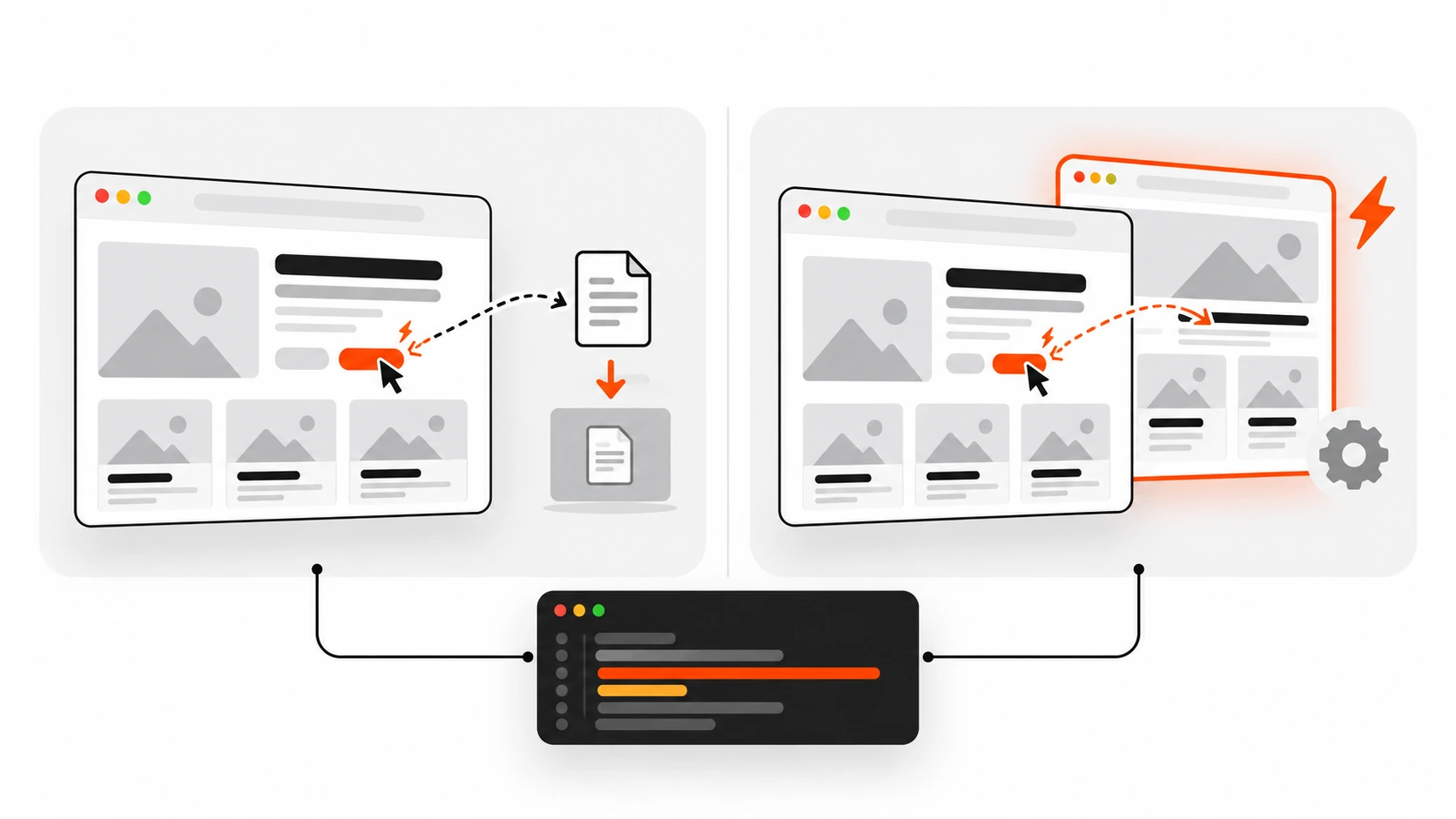
The message I get most often after a deploy goes something like this: “I changed the button color. Why do I still see the old one?” One person on the team sees the new color, another sees the old one, and a hard refresh fixes it for them but not for their customers. Usually nothing is wrong with the code. The stylesheet is called style.css, the server sends it with a long max-age, and every browser that visited recently is doing exactly what it was told: reuse the copy it already has.
That is the most common caching bug I see, and it comes from the same root cause every time. Cache-Control headers are a set of instructions, and most sites send them by accident: a hosting default here, a plugin setting there, a framework default nobody looked at. When the instructions are wrong, you get stale pages after a deploy, or you get the opposite problem: a site that downloads the same 300 KB bundle on every single visit because nothing is allowed to be reused.
In this guide I will walk through how I set Cache-Control headers on client projects: the three layers of cache a request passes through, the three rules that cover almost every file on a normal site, how stale-while-revalidate works behind a CDN, and the exact snippets I use for Next.js, Nginx, Apache or LiteSpeed .htaccess, and WordPress. I will finish with how I check headers with curl -I and DevTools, because the headers you think you send and the headers you actually send are often different.
Why Cache-Control headers matter more than another plugin
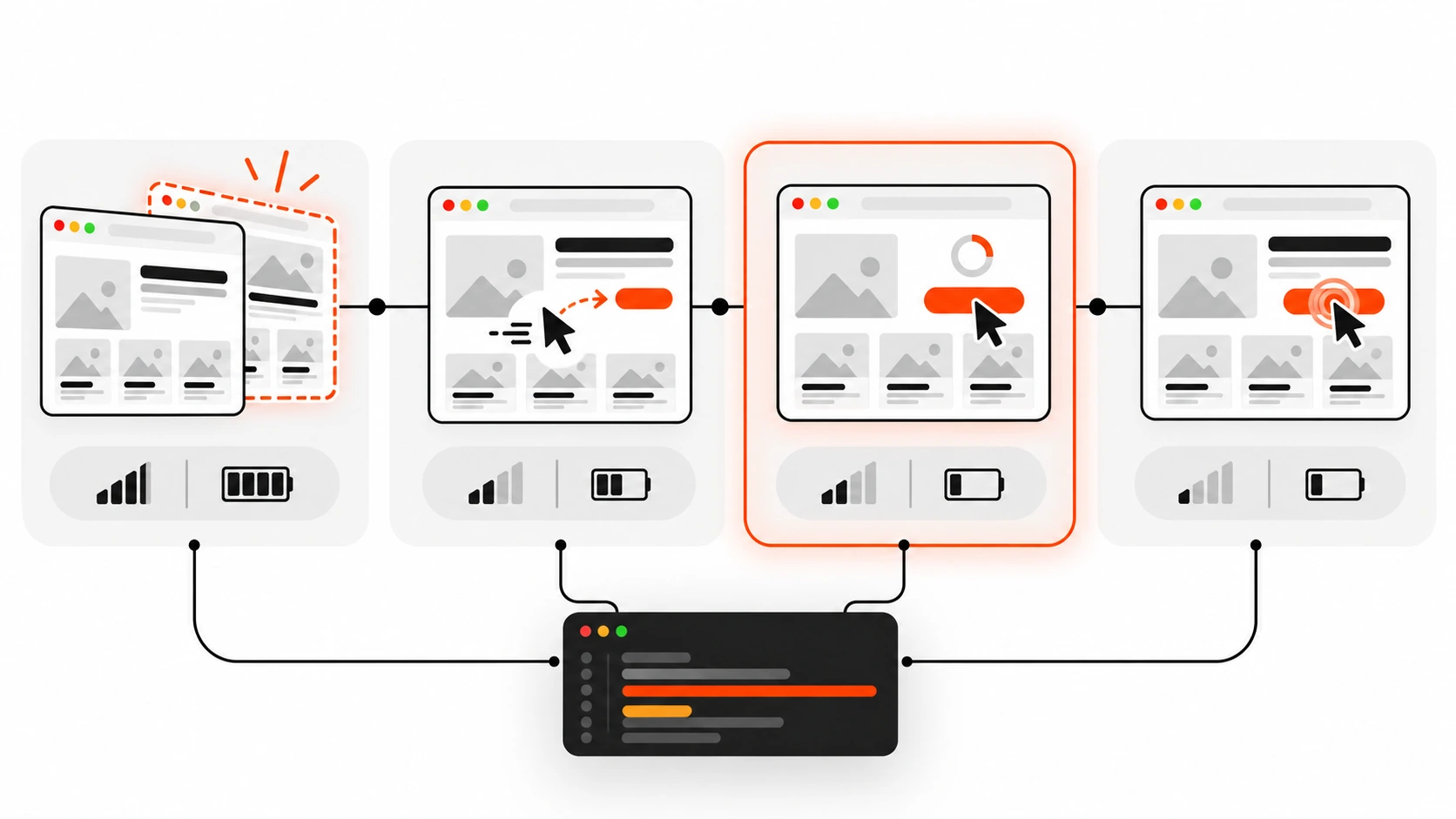
Every repeat visit is a chance to skip the network. When the browser already holds a fresh copy of your CSS, JavaScript, fonts and images, the page can start rendering as soon as the HTML arrives. When it does not, the browser has to ask the server for each file again, wait for the answer, and only then continue. On a fast office connection you barely notice. On a phone on a train, it is the difference between a page that feels instant and one that feels broken.
Good Cache-Control headers also protect your server. A file served from a CDN edge or the browser’s own cache never touches your origin, so your hosting plan, your PHP workers and your database get to rest. On WordPress sites I often get a bigger speed win from fixing headers than from swapping themes, and it costs nothing. If you want the server side of that story, I wrote about it in my guide to WordPress performance and TTFB.
One more reason to be explicit: if a response has no Cache-Control header at all, it is not automatically “not cached”. HTTP allows heuristic caching, where a cache guesses a lifetime from the Last-Modified date. MDN notes that the spec suggests roughly 10 percent of the time since the file was last modified. So a stylesheet that was last changed a year ago could be reused for weeks without you ever asking for that. The safest habit is simple: every response your site sends should carry a deliberate Cache-Control header.
The three cache layers a request travels through
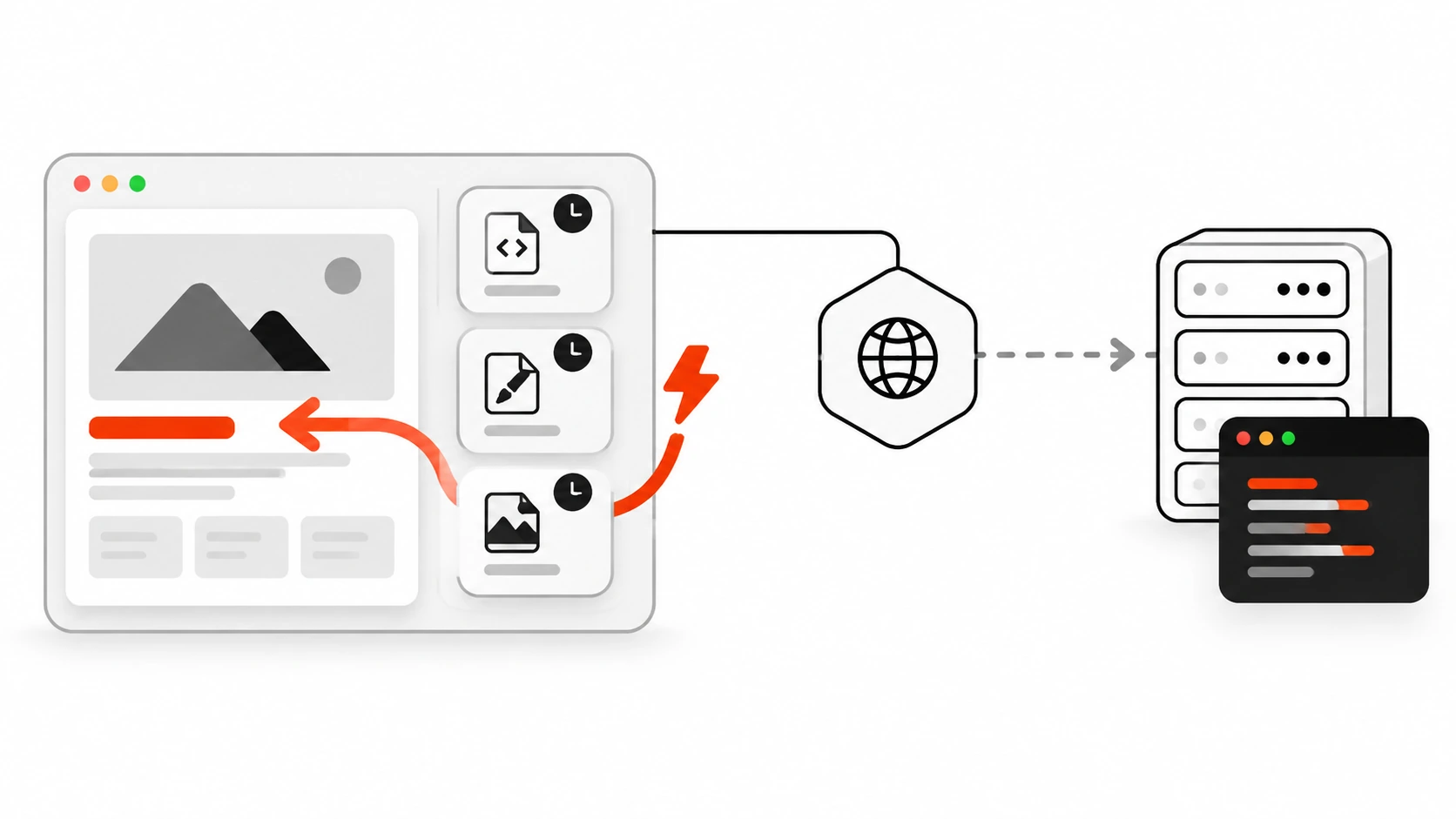
When I explain caching to clients, I draw three boxes: the browser, the CDN edge and the origin server. A request starts at the left and only travels as far right as it needs to.
The browser cache is a private cache. It belongs to one person on one device, so it can safely store things that are personal to them. It is also the fastest layer by far, because a fresh hit there does not touch the network at all.
The CDN edge is a shared cache. Cloudflare, Vercel’s CDN, Fastly, Akamai, a reverse proxy like Varnish or an Nginx cache: they all store one copy and hand it to many visitors. That makes them great for public files and public pages, and dangerous for anything personal. If a logged-in dashboard ends up in a shared cache, the next visitor can get someone else’s data.
The origin is your actual server: Node, PHP, a WordPress install, a static file host. Every request that reaches it costs CPU time and, usually, more latency, because the origin is often far away from the visitor.

Cache-Control is how you tell each of these layers what it may do. Some directives apply to every cache, some only to shared caches (s-maxage, proxy-revalidate), and some only make sense for the browser (immutable, private). Once you see the three boxes, the directives stop looking like random words.
The Cache-Control directives you actually need
The full list on MDN is long, but on real projects I reach for about eight response directives. Here is how I think about each one.
max-age=N: the response stays fresh for N seconds, counted from when the origin generated it. While fresh, any cache may reuse it without asking.s-maxage=N: the same idea, but only for shared caches like a CDN. Browsers ignore it. It overridesmax-agefor those shared caches.no-cache: caches may store the response, but must check with the server before every reuse. It does not mean “do not cache”.no-store: no cache, private or shared, should store the response at all.private: only the browser may store it. CDNs and proxies must not.public: shared caches may store it even in cases where they normally would not, such as responses to requests with anAuthorizationheader. You rarely need it otherwise.immutable: tells the browser the file will never change while it is fresh, so it should not even revalidate on a reload.stale-while-revalidate=Nandstale-if-error=N: extensions from RFC 5861 that allow a cache to serve a slightly stale copy while it refreshes in the background, or when the origin is failing.
The single most misunderstood pair is no-cache and no-store. MDN puts it bluntly: no-cache allows caches to store a response but requires them to revalidate it before reuse. If what you really mean is “never keep a copy”, that is no-store. I have seen login pages sent with no-cache because someone thought it blocked storage, and marketing pages sent with no-store because someone wanted them “always fresh”. Both are backwards.
You will also see kitchen-sink headers like private, no-cache, no-store, max-age=0, must-revalidate copied from old answers. Because the most restrictive directive wins, that whole line effectively means no-store. Write what you mean instead.
Rule 1: hashed assets get a year and immutable
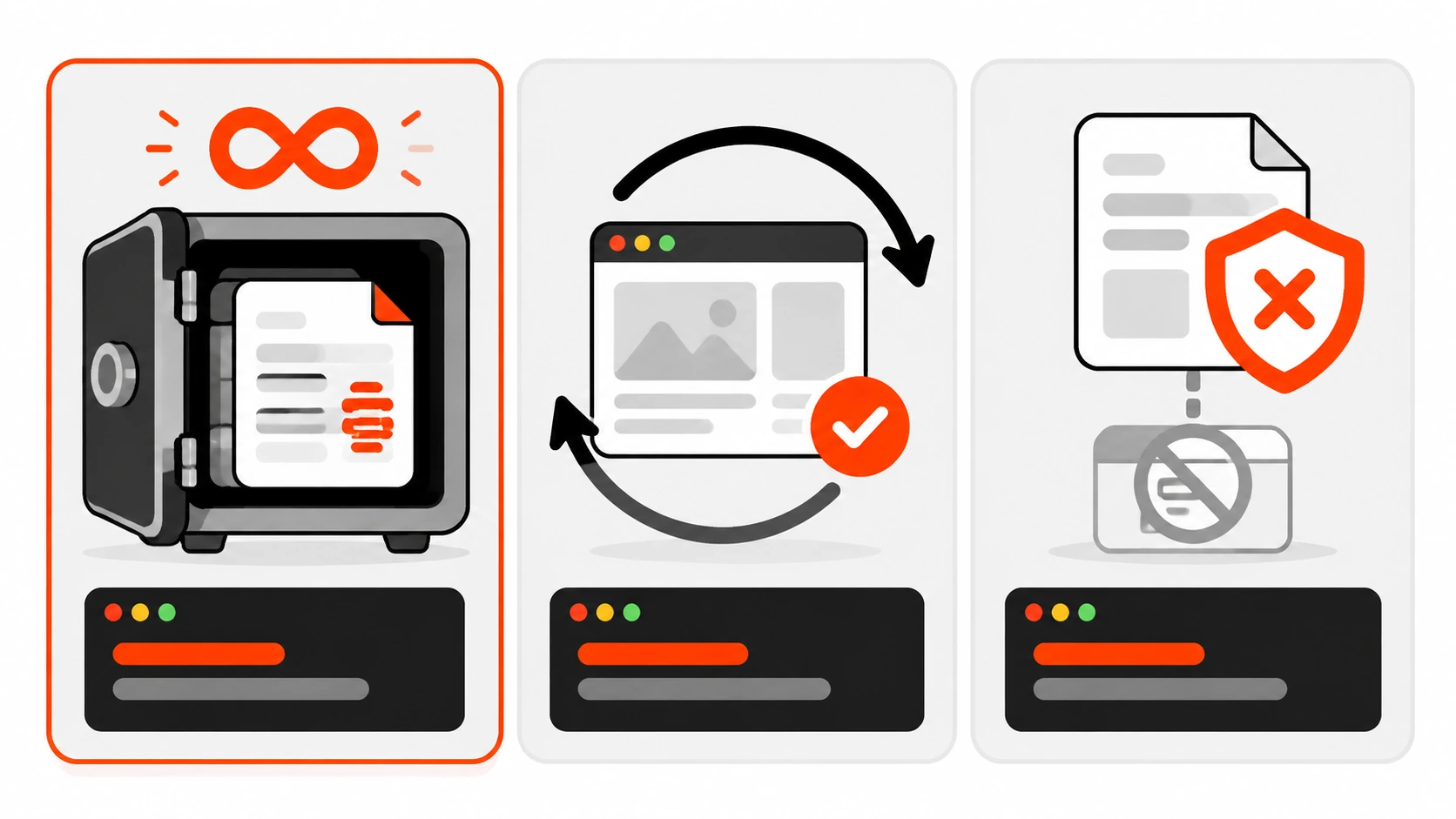
The first rule covers JavaScript bundles, CSS files, fonts and images that your build tool fingerprints. When a file name contains a hash of its contents, like app.3f9a1c.js, the content behind that URL can never change. If you edit the code, the build produces a new hash and therefore a new URL. That makes it safe to cache the file for as long as browsers allow:
Cache-Control: public, max-age=31536000, immutable31536000 seconds is one year. The immutable directive tells supporting browsers not to send a revalidation request even when the user hits reload. According to MDN, Chrome took a different route and stopped revalidating subresources on normal reloads instead, so the practical result is similar across browsers. The public part is optional for most sites, but this exact public, max-age=31536000 value is so common that it sits in the HTTP/3 QPACK static header table.
The classic mistake: a long max-age on style.css
Here is the bug from the opening story, in header form. The HTML references a stylesheet without any version in its name:
<link rel="stylesheet" href="/css/style.css">And the server sends this for every CSS file:
Cache-Control: max-age=2592000That is 30 days. Every visitor who loaded the page before your deploy keeps using the old style.css for up to a month, and there is nothing you can do from the server to recall it. MDN is clear on this: there are no cache directives for clearing already-stored responses, and Clear-Site-Data: cache only clears the browser cache of a visitor who actually reaches you, not CDNs in between.
The fix is not a shorter max-age. The fix is to change the URL whenever the content changes, and then cache aggressively:
<!-- Built by Vite, webpack, Next.js and others -->
<link rel="stylesheet" href="/assets/style.8c41d2.css">

<!-- WordPress style: version in the query string -->
<link rel="stylesheet" href="/wp-content/themes/mytheme/style.css?ver=2.4.1">
Once every static file has a hash or version in its URL, you can safely give it the one-year header. If you cannot add hashes yet, give unversioned files no-cache with a validator instead, so browsers check before reusing them. That is slower than a hashed file, but it is never wrong.
Rule 2: HTML gets no-cache with ETag revalidation
HTML is different, because its URL can never change. /pricing has to stay /pricing. If you give HTML a long max-age, you are back to the stale-page problem, and this time hashed assets will not save you, because the old HTML still points at the old hashed files.
For most public HTML I use:
Cache-Control: no-cache
ETag: "5f2b-1a9c"
Last-Modified: Wed, 07 Oct 2026 09:12:00 GMT
The browser stores the page but asks before reusing it. It sends a conditional request with the validators it saved:
GET /pricing HTTP/1.1
If-None-Match: "5f2b-1a9c"
If-Modified-Since: Wed, 07 Oct 2026 09:12:00 GMT
If nothing changed, the server answers 304 Not Modified with no body, which is tiny. If the page did change, it sends a normal 200 with the new HTML, and that new HTML points to the new hashed CSS and JS. When both validators are present, If-None-Match wins, so a good ETag is the one that matters most. Most web servers and frameworks generate ETags for static files automatically; for dynamic pages you may need to check that your stack actually sends one, otherwise every revalidation becomes a full download.
This pairing, hashed assets cached for a year plus HTML that always revalidates, is the cache-busting pattern MDN recommends, and it is the backbone of every site I build.
A quick word on bfcache
There is one place where no-cache does not revalidate: the back and forward buttons. Browsers can restore a page from the back/forward cache (bfcache), which is a memory snapshot of the whole page, not an HTTP cache entry. That restore is instant and does not check with the server. It is usually exactly what you want. If a page shows data that changes minute to minute, listen for the pageshow event and refresh that data when event.persisted is true.
Rule 3: private data gets no-store (or private)
Anything personal to one user needs special care: account pages, order history, checkout, dashboards, API responses that include a user’s details. Two directives matter here.
# Personalized, but fine to keep in this user's own browser for a moment
Cache-Control: private, no-cache

# Sensitive: never store anywhere
Cache-Control: no-store
private keeps responses out of shared caches while still letting the browser reuse or revalidate them. MDN recommends adding private to responses after login and for cookie-based sessions, because forgetting it is how personal data leaks through a shared cache. no-store goes further and tells every cache not to keep a copy at all. I use it for banking-style screens, password reset pages and anything with tokens or personal documents.
Do not spread no-store across the whole site, though. The web.dev bfcache guide explains that pages served with Cache-Control: no-store have historically been excluded from the back/forward cache, which makes back navigation slower for everyone (Chrome is working on changing this in a privacy-preserving way, but I would not rely on it yet). For pages that just need to be up to date and are not sensitive, no-cache is the better tool.
A related trap is the Vary header. Vary: Accept-Encoding is normal and harmless. Vary: User-Agent splits the cache into thousands of variants and kills your hit rate. And if you are tempted to use Vary: Cookie to separate users, MDN and Vercel both point you to private instead.
Behind a CDN: s-maxage and stale-while-revalidate
So far HTML always goes back to the origin. That is fine for many sites, but for content-heavy pages that are the same for every visitor, like blog posts, docs or product listings, you can let the CDN hold a copy for a few minutes and serve it to everyone. The browser still revalidates, but the CDN answers instead of your server.

A cached response moves through three phases. While it is fresh, the cache serves it instantly. Once it goes stale, stale-while-revalidate gives a grace window where the cache still serves the old copy immediately and fetches a new one in the background, so no visitor waits for the origin. After that window, the response is expired and the next visitor waits for a full trip to the server.
On Vercel, and for Next.js ISR pages, the documented pattern is:
Cache-Control: s-maxage=600, stale-while-revalidate=60That reads as: the CDN keeps the page fresh for 10 minutes, then for one more minute it may serve the stale copy while refreshing it in the background. Browsers ignore s-maxage, and Vercel’s docs say its CDN consumes s-maxage and stale-while-revalidate and strips them from the response the browser sees when Cache-Control is the only cache header.
The Cloudflare gotcha with s-maxage
This is the part I had to double check while writing, because CDNs read the same header differently. Cloudflare’s documentation says not to combine s-maxage with stale-while-revalidate: under RFC 9111, s-maxage carries the semantics of proxy-revalidate, so a shared cache must not serve stale content without revalidating first, and Cloudflare will report EXPIRED instead of serving stale. Their suggested workarounds are to send max-age with stale-while-revalidate and set a separate Edge Cache TTL in Cache Rules, or to use a CDN-specific header.
Also remember that Cloudflare does not cache HTML or JSON by default at all. It caches by file extension (CSS, JS, images, fonts and so on), and it skips responses with private, no-store, no-cache, max-age=0 or a Set-Cookie header. If you want HTML at the edge, you need a Cache Rule plus sensible headers.
CDN-Cache-Control: one header per audience
RFC 9213 standardized targeted cache control, which solves exactly this problem. CDN-Cache-Control uses the same directives as Cache-Control, but only CDNs that support it read it, and when they do, they ignore the normal Cache-Control header for their own decisions:
Cache-Control: no-cache
CDN-Cache-Control: max-age=600, stale-while-revalidate=60
Here the browser always revalidates, while the CDN holds the page for 10 minutes with a one-minute background refresh window. Cloudflare and Vercel both document support for CDN-Cache-Control, plus their own vendor headers, Cloudflare-CDN-Cache-Control and Vercel-CDN-Cache-Control, which take priority and are not forwarded downstream. Fastly’s docs center on its own Surrogate-Control header and Akamai has its own settings, so check your provider’s documentation before relying on the standard header there.
One warning that comes with any edge caching of HTML: a long CDN lifetime is only safe if you can purge it. Next.js documents that revalidatePath() and revalidateTag() refresh the Next.js server cache but do not purge an external CDN, so pair them with your CDN’s purge API, or keep the edge lifetime short.
Framework and server examples
Here are the snippets I actually paste into projects. Adjust paths to match where your build puts its files.
Next.js
Next.js already does the hard part for hashed files. Its docs state that it sends public, max-age=31536000, immutable for truly immutable assets, like the hashed files under /_next/static, and that you cannot override that in next.config.js. For pages, it sets headers from the rendering strategy: static pages get s-maxage=31536000, ISR pages get s-maxage equal to your revalidate value plus a stale-while-revalidate window, and dynamic pages get private, no-cache, no-store, max-age=0, must-revalidate.
For everything else, use the headers() function in next.config.js:
// next.config.js
module.exports = {
  async headers() {
    return [
      {
        // Files in /public are not hashed, so revalidate them
        source: '/images/:path*',
        headers: [{ key: 'Cache-Control', value: 'public, max-age=0, must-revalidate' }],
      },
      {
        source: '/account/:path*',
        headers: [{ key: 'Cache-Control', value: 'no-store' }],
      },
    ];
  },
};
In a Route Handler you can set headers directly on the response:
// app/api/posts/route.js
export async function GET() {
  const posts = await getPublicPosts();
  return Response.json(posts, {
    headers: {
      'Cache-Control': 'public, max-age=60',
      'CDN-Cache-Control': 'max-age=600, stale-while-revalidate=60',
    },
  });
}
Nginx
# Hashed build output, for example /assets/app.3f9a1c.js
location /assets/ {
    add_header Cache-Control "public, max-age=31536000, immutable" always;
    try_files $uri =404;
}

# HTML and everything else: always revalidate
location / {
    add_header Cache-Control "no-cache" always;
    try_files $uri $uri/ /index.html;
}

location /account/ {
    add_header Cache-Control "no-store" always;
    proxy_pass http://app;
}
A gotcha that has bitten me more than once: in Nginx, add_header directives are inherited from the parent level only if the current level defines none. So the moment you add a Cache-Control header inside a location, any security headers you set at the server level disappear from that location unless you repeat them. Newer Nginx releases (1.29.3 and later) add add_header_inherit merge to change that behavior. Also note always: without it, Nginx only adds the header for a list of success and redirect status codes.
Apache, LiteSpeed and .htaccess
Most shared hosting runs Apache or LiteSpeed, and both read .htaccess. With mod_headers available:
<IfModule mod_headers.c>
  # Fingerprinted files like app.3f9a1c.js or style.8c41d2.css
  <FilesMatch "\.[0-9a-f]{6,}\.(js|css|woff2|svg|png|jpg|webp|avif)$">
    Header set Cache-Control "public, max-age=31536000, immutable"
  </FilesMatch>

  # HTML and PHP output: always revalidate
  <FilesMatch "\.(html|php)$">
    Header set Cache-Control "no-cache"
  </FilesMatch>
</IfModule>
The pattern above matches hex hashes like app.3f9a1c.js. Vite and some other tools produce names like index-B4f9xQ2a.js instead, so either adjust the pattern or, simpler, put all build output in one folder such as /assets/ and give that folder the long header.
If you only have mod_expires, the older style still works, but it cannot express immutable:
<IfModule mod_expires.c>
  ExpiresActive On
  ExpiresByType text/css "access plus 1 year"
  ExpiresByType application/javascript "access plus 1 year"
  ExpiresByType image/webp "access plus 1 year"
  ExpiresByType text/html "access plus 0 seconds"
</IfModule>
Only give a year to files whose URLs change when their content changes. On WordPress that is true for theme and plugin assets loaded with a ?ver= query string, as long as the version actually bumps on each release.
WordPress
WordPress core already protects private screens. Its wp_get_nocache_headers() function returns Cache-Control: no-cache, must-revalidate, max-age=0, no-store, private, and since WordPress 6.8 it includes no-store and private regardless of whether the user is logged in. It is used for things like the REST API server and admin requests, and you can adjust it with the nocache_headers filter.
For public pages, your page cache plugin or host usually decides the headers. For theme assets, the trick is to make sure the version changes on every deploy. I tie it to the file’s modification time:
// functions.php
add_action( 'wp_enqueue_scripts', function () {
    $path = get_stylesheet_directory() . '/assets/main.css';
    wp_enqueue_style(
        'theme-main',
        get_stylesheet_directory_uri() . '/assets/main.css',
        array(),
        filemtime( $path ) // new ?ver= whenever the file changes
    );
} );
Now the browser sees main.css?ver=1791349920 and a new number after every change, so a long cache lifetime on that file is safe.
How I inspect Cache-Control headers
I never trust a config file on its own. CDNs, hosting panels and plugins all rewrite headers, so I check what actually comes back.
From the terminal, curl -I sends a HEAD request and prints only the headers:
curl -I https://example.com/
curl -I https://example.com/assets/app.3f9a1c.js

# Test revalidation: send the ETag back and expect a 304
curl -I -H 'If-None-Match: "5f2b-1a9c"' https://example.com/

# Some servers treat HEAD differently, so compare with a real GET
curl -s -o /dev/null -D - https://example.com/
Look for cache-control, etag, last-modified, age and vary, plus the CDN’s own status header: cf-cache-status on Cloudflare (HIT, MISS, EXPIRED, UPDATING, BYPASS, DYNAMIC) or x-vercel-cache on Vercel. Run the same command twice; a growing age value tells you the response really is coming from a shared cache.
In Chrome DevTools, open the Network panel, reload, and click any request to see its response headers. The Size column shows “(memory cache)” or “(disk cache)” when a file never touched the network, and a 304 status when it revalidated. Two things trip people up here. First, the “Disable cache” checkbox is on in many setups, which makes everything look uncached. Second, Vercel notes that DevTools often sends Pragma: no-cache, which makes its CDN revalidate synchronously, so timings with DevTools open are not what real visitors see. To test bfcache, open Application, then Back-forward Cache, and click Run Test.
My default Cache-Control setup, as a checklist
If you only take one thing from this post, take this table of decisions. It covers nearly every site I work on:
- Hashed JS, CSS, fonts and images:
public, max-age=31536000, immutable. - Unhashed static files (favicon,
robots.txt, files in/public):no-cachewith an ETag, or a shortmax-ageif you accept some staleness. - Public HTML:
no-cachewith an ETag. Add CDN caching withCDN-Cache-Controlors-maxageonly when you can purge. - Logged-in or personalized pages:
private, no-cache. - Sensitive pages and API responses with personal data:
no-store. - Every response: an explicit Cache-Control header, so no cache has to guess.
Caching rules are one of those things that feel boring until a stale stylesheet ships to every customer. Spend twenty minutes with curl -I on your own site this week. Check what your HTML sends, check what your CSS sends, and make sure every long lifetime belongs to a URL that changes when the file does. Repeat visits get faster, deploys stop needing “try a hard refresh”, and your server gets a lot quieter. If you are looking for the next speed win after that, my guide to the Speculation Rules API shows how to make the next page load before the click.